TexturePacker Costs $40. This Free Sprite Sheet Generator Handles 90% of What You Need.
For icon sets, CSS UI sprites, Phaser game atlases and PixiJS texture packs, a browser-based generator does the job without installation, cost or uploading proprietary art to a third-party server. This tool packs your images, generates ready-to-paste CSS background-position code and exports a JSON manifest compatible with Phaser 3 and PixiJS — entirely in your browser.
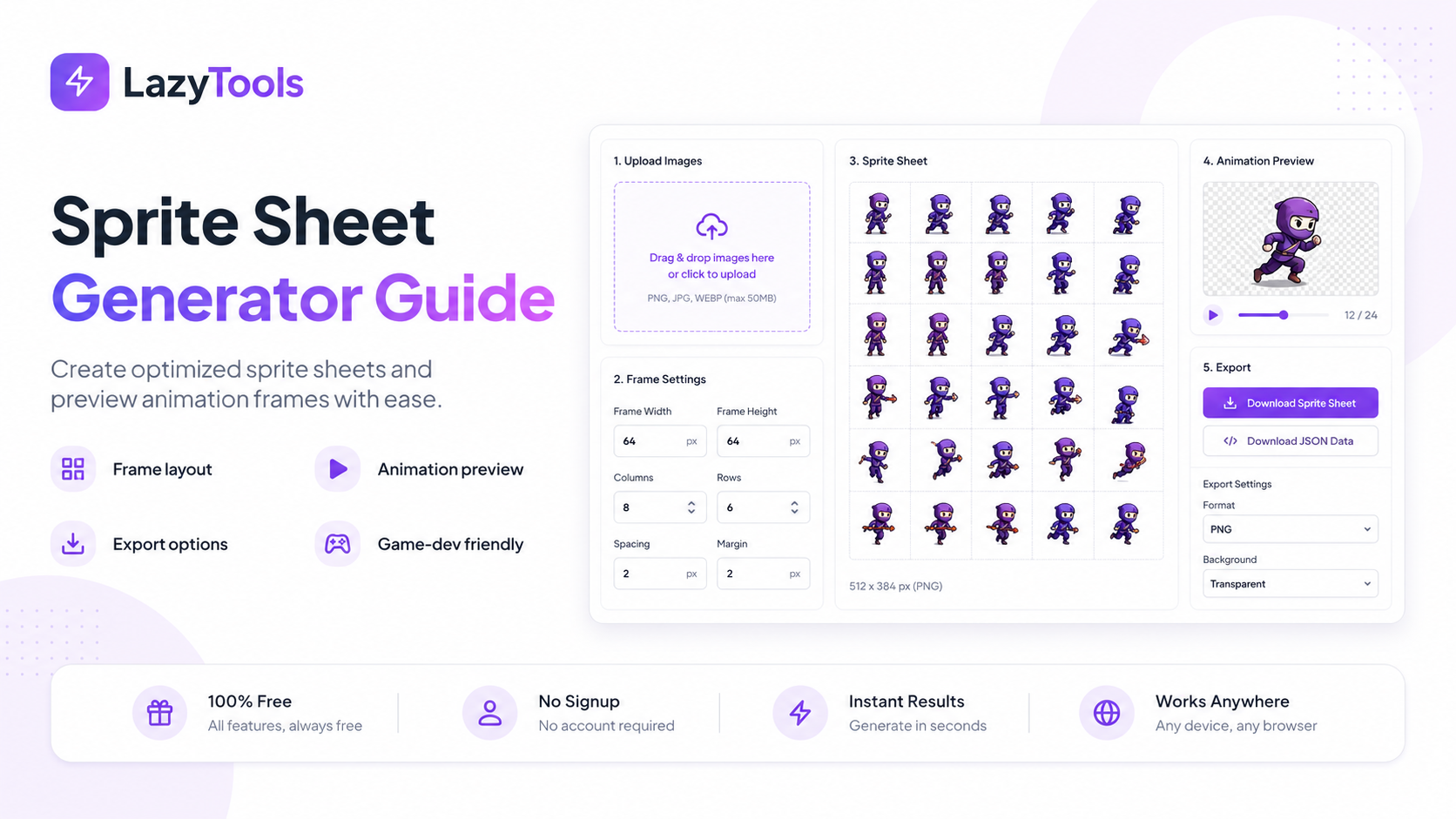
The HTTP Request Problem That Sprite Sheets Were Built to Solve
A sprite sheet — also called a texture atlas or sprite atlas — is a single image file containing multiple smaller images packed together. Specifically, instead of loading 30 separate icon files, you load one sprite sheet and use CSS or a game engine's atlas loader to display each individual image from its known position within the sheet. Furthermore, the performance case is straightforward: every HTTP request carries latency overhead — DNS lookup, TCP connection, TLS handshake, request-response round trip. On a fast broadband connection, each request adds approximately 20-50ms. On a mobile network, each request adds 100-300ms. Consequently, a page that loads 30 small icons with 30 separate requests can accumulate 3-9 seconds of cumulative latency just from HTTP overhead — before any image data is transferred.
Loading the same 30 icons as a single sprite sheet — one HTTP request — eliminates that overhead entirely and replaces it with one slightly larger payload. Furthermore, beyond HTTP latency, combining images reduces the number of TCP connections the browser must manage, reduces DNS lookup overhead and reduces TLS session negotiation overhead. Additionally, a single cached sprite sheet image remains cached across page navigations, while individual icon files may expire from cache independently. Consequently, sprite sheets improve both first-load and subsequent-load performance for icon-heavy pages.
🎮 Game Development: A Different Use Case
In game development, sprite sheets serve a different purpose. Specifically, a game sprite sheet typically contains all the animation frames of a character — walk cycle, idle, attack, jump, death — arranged in a grid or strip. Game engines load the entire sheet once, then extract individual frames by their coordinates from a JSON or XML manifest file. Furthermore, this single-texture approach is critical for GPU performance: modern GPUs batch draw calls on the same texture dramatically faster than switching between textures for each sprite. Consequently, packing all character frames and UI elements into a single texture atlas is a standard game performance optimisation across every platform and engine.
What This Sprite Sheet Generator Includes That Others Don't
Every competing free sprite sheet tool generates a packed PNG. Specifically, the LazyTools generator adds four capabilities that all competitors omit: a JSON manifest for Phaser and PixiJS, Retina @2x mode with adjusted CSS, live per-sprite preview, and HTML usage examples — making it the only free browser-based tool that covers the complete web and game developer workflow.
How to Generate a Sprite Sheet in Five Steps
🕹️ Generate Your Sprite Sheet Now
PNG + CSS + JSON, Retina @2x, Phaser ready — free, no upload, no signup.
How CSS background-position Works for Sprites: The Complete Technical Explanation
Each sprite in the sheet is displayed by setting the combined image as a background-image on a container element, then using background-position to offset the image so only the correct sprite is visible through the container's constrained width and height. Specifically, the negative x and y values move the background image left and upward within the container, revealing only the target sprite through the container's clipped viewport. Furthermore, the container's width and height clip everything else, creating the illusion that only one sprite is visible from the full sheet.
/* Generated CSS for a sprite at position x:48px, y:0px */
.sprite-github {
  background-image: url('sprites.png');
  background-position: -48px -0px;
  width: 32px;
  height: 32px;
  display: inline-block;
  background-repeat: no-repeat;
}
The negative offset values are the most counterintuitive aspect — specifically, a sprite at position x:48, y:0 in the sheet requires background-position: -48px 0px because the background image is shifted 48 pixels to the left to bring that sprite into the container's view window. Furthermore, the convention of negative values for positive sprite positions is consistent across all browsers and has been stable since CSS2. Consequently, the LazyTools generator applies this convention correctly for all sprite positions in all three layout modes.
🎨 Using Sprites in HTML Elements
A sprite class is applied to any inline or block element — typically a <span>, <div> or <i> — and the element displays the sprite at the correct position. Specifically, the element must have display: inline-block or display: block to respect its explicit width and height values. Furthermore, adding background-repeat: no-repeat prevents the sheet from tiling when the element is larger than the sprite. Additionally, for accessibility, any sprite used to convey meaning should have an appropriate aria-label on the containing element, since the image is a CSS background and invisible to screen readers by default.
<!-- HTML usage example -->
<span class="sprite sprite-github" aria-label="GitHub"></span>
<span class="sprite sprite-twitter" aria-label="Twitter"></span>

/* Base class shared by all sprites */
.sprite {
  display: inline-block;
  background-image: url('sprites.png');
  background-repeat: no-repeat;
}JSON Spritesheet Manifest: Using Your Sprite Sheet in Phaser 3 and PixiJS
Game engines use a JSON atlas format to load sprite sheets — the JSON describes exactly where each sprite lives in the sheet, allowing the engine to extract individual frames by name. Specifically, the JSON this tool exports follows the Phaser 3 / PixiJS atlas format, where each frame has a name (from the source filename without extension), x and y coordinates, and width and height values. Furthermore, the meta block includes the sheet's overall dimensions and scale factor, which game engines use for coordinate validation.
{
  "frames": {
    "player-idle": {
      "frame": { "x": 0, "y": 0, "w": 64, "h": 64 },
      "rotated": false,
      "trimmed": false
    },
    "player-run-1": {
      "frame": { "x": 64, "y": 0, "w": 64, "h": 64 },
      "rotated": false,
      "trimmed": false
    }
  },
  "meta": {
    "image": "sprites.png",
    "size": { "w": 512, "h": 256 },
    "scale": "1"
  }
}
⚡ Phaser 3 Atlas Loading
In Phaser 3, load the atlas in your scene's preload method, then reference individual frames by name in create and throughout gameplay. Specifically, the frame name corresponds directly to the source filename without extension — if you upload player-idle.png, it appears in the JSON as "player-idle" and is accessible in Phaser's texture cache under that key. Furthermore, Phaser's animation system can reference atlas frames by name for sprite animations, making the naming consistent between the generator, the JSON file and the Phaser code.
// In your Phaser scene's preload():
this.load.atlas('player', 'sprites/player.png', 'sprites/player.json');

// In create() - display a specific frame:
this.add.sprite(400, 300, 'player', 'player-idle');

// Create an animation from multiple frames:
this.anims.create({
  key: 'run',
  frames: this.anims.generateFrameNames('player', {
    prefix: 'player-run-',
    start: 1, end: 4
  }),
  frameRate: 12,
  repeat: -1
});
⚡ PixiJS Atlas Loading
PixiJS uses its Assets API to load the JSON atlas, which automatically loads the associated PNG. Specifically, after loading, individual sprites are accessible as PIXI.Texture objects referenced by their frame name. Furthermore, the same atlas can be used for both static sprites and animated sequences — PixiJS's AnimatedSprite accepts an array of textures extracted from the atlas.
// Load the atlas (also loads the PNG automatically):
await PIXI.Assets.load([
  { alias: 'player', src: 'sprites/player.json' }
]);

// Access individual frames:
const idleTexture = PIXI.Texture.from('player-idle');
const sprite = new PIXI.Sprite(idleTexture);
app.stage.addChild(sprite);

// Animated sprite from atlas frames:
const runFrames = ['player-run-1','player-run-2','player-run-3','player-run-4']
  .map(name => PIXI.Texture.from(name));
const animated = new PIXI.AnimatedSprite(runFrames);
animated.animationSpeed = 0.2;
animated.play();Retina @2x Sprite Sheets: Sharp Icons on HiDPI and 4K Displays
A Retina (or HiDPI) sprite sheet contains images drawn at 2× the intended display size. When loaded in CSS, the background-size is set to 50% of the actual image dimensions, making each sprite display at the correct size. Specifically, the doubled pixel density means each sprite appears twice as sharp on Retina MacBook screens, iPhone screens and 4K monitors — where the device pixel ratio (DPR) is 2× or higher, and standard 1× images appear soft or pixelated.
/* Standard 1x sprite */
.sprite-logo {
  background-image: url('sprites.png');
  background-position: -0px -0px;
  width: 32px;
  height: 32px;
}

/* @2x Retina variant — load via media query */
@media (-webkit-min-device-pixel-ratio: 2), (min-resolution: 192dpi) {
  .sprite-logo {
    background-image: url('sprites@2x.png');
    /* background-size is half the actual @2x image dimensions */
    background-size: 256px 128px;
  }
}
Specifically, the LazyTools @2x mode generates both the sprite sheet and the adjusted CSS in one generation step — you do not need to manually calculate the background-size values. Furthermore, the Retina mode CSS includes the correct @media query wrapper, ready to paste into your stylesheet alongside the 1× rules. Additionally, for the @2x workflow to work correctly, your source images must be prepared at 2× their intended display size — a 32×32px icon must be supplied as a 64×64px image for the @2x sheet to render at 32×32 on Retina displays. Consequently, planning your asset sizes before generation is important: decide the final display size, then prepare all source images at 2× that size.
When Sprites Help, When They Don't, and What the Numbers Show
Sprite sheets offer measurable performance benefits in specific scenarios, but their advantage has narrowed with HTTP/2 and diminished further with HTTP/3. Understanding when they help versus when they add unnecessary complexity lets you make the right choice for each project.
📊 When Sprite Sheets Make a Measurable Difference
Specifically, the performance case for sprites is strongest when: (1) the page has 15 or more small images (icons, UI elements, flags), (2) the page is served over HTTP/1.1, (3) the images are frequently reused across multiple pages sharing a cached sprite sheet, and (4) the images are static (not dynamically generated). Furthermore, WebPageTest benchmarks on HTTP/1.1 connections consistently show a 30-60% reduction in total load time for icon-heavy pages when switching from individual images to a sprite sheet — a substantial improvement that remains relevant for the portion of traffic on older HTTP versions.
📊 When Sprites Are Not Worth the Complexity
Specifically, sprites add maintenance overhead — updating one icon means regenerating the entire sheet and updating the CSS coordinates. For projects with 5 or fewer icons, the performance gain rarely justifies this overhead. Furthermore, SVG icons (either as <img> or inline SVG) are more flexible than PNG sprites: they scale to any size, respond to CSS colour changes via fill and currentColor, and are resolution-independent. Additionally, SVG icon sprites (using the <symbol> and <use> pattern) offer many of the same HTTP request reduction benefits as PNG sprites while remaining flexible. Consequently, for new projects, evaluate SVG icon sprites alongside PNG sprite sheets before choosing an approach.
Five Sprite Sheet Mistakes That Break Layouts and Waste Performance Gains
❌ Mistake 1: Using Zero Padding on High-DPI Displays
Zero padding between sprites works correctly at 1× zoom and 1× device pixel ratio. Specifically, at 2× DPR (Retina), 1.5× zoom, or when the browser renders at a non-integer scale, adjacent sprite pixels bleed into the visible area — the sprite appears to have a thin stripe of the neighbouring sprite's colour along one edge. Furthermore, this bleeding is particularly visible with light-coloured sprites adjacent to dark sprites, making it obvious even at a glance. Consequently, always add at least 1-2 pixels of padding between sprites, even in game development contexts where padding was previously avoided for file size reasons. The LazyTools generator defaults to 2px padding precisely because this is the minimum that reliably prevents bleeding across all rendering contexts.
❌ Mistake 2: CSS Class Name Conflicts With Framework Classes
The default CSS class prefix .sprite conflicts with common utility class names in Bootstrap, Tailwind and other CSS frameworks. Specifically, Bootstrap uses .sprite in legacy versions, and custom design systems frequently use the same term. Furthermore, generated class names like .sprite-button or .sprite-icon conflict with semantic class names in many codebases. Consequently, always use a project-specific prefix — for example, .nav-icon- for navigation icons, .ui- for UI elements, or a brand identifier like .acme-sprite- — to avoid collisions. The LazyTools generator's prefix field accepts any valid CSS class prefix.
❌ Mistake 3: Including Too Many Sprites in One Sheet
A single sprite sheet with 200+ sprites may be larger than the sum of the images you actually use on any given page. Specifically, if a page uses only 15 of 200 sprites, it loads 185 sprites worth of image data that it never displays. Furthermore, extremely large sprite sheets may exceed browser memory limits on low-memory mobile devices, causing performance degradation rather than improvement. Consequently, the best practice is to create theme-based or section-based sprite sheets — one sheet for navigation icons, one for social media icons, one for a specific game scene — rather than a single monolithic sheet for the entire project.
❌ Mistake 4: Not Including display: inline-block on Sprite Elements
The generated CSS sets width and height on each sprite class, but inline elements (<span>, <a>, <i>) ignore explicit width and height by default in CSS. Specifically, without display: inline-block or display: block, the sprite element collapses to zero dimensions and shows nothing. Furthermore, this is the most common reason developers report that "the sprites aren't showing" after generating a sheet — the CSS is correct but the HTML elements need display: inline-block applied either via the base sprite class or inline. The generated HTML usage examples include the display: inline-block declaration explicitly, but custom implementations often omit it.
❌ Mistake 5: Using JPG for Sprites with Transparent Backgrounds
JPG does not support transparency. Specifically, any sprite with a transparent background saved as JPG will have a solid background colour — typically white or black depending on the tool used to create it — which makes the sprite unusable for overlay and compositing scenarios. Furthermore, JPG compression artefacts create visible halos and colour fringing around the edges of sprites, particularly at the boundary between transparent and opaque areas where the artefacts are most visible. Consequently, always prepare sprite source files as PNG (for raster graphics with transparency) or SVG (for vector graphics with transparency). The LazyTools generator accepts both formats and preserves transparency correctly in the generated PNG sprite sheet.
How AI Is Changing Sprite Sheet Generation and Game Asset Workflows
Artificial intelligence is beginning to automate aspects of sprite generation, optimisation and the broader game asset pipeline — affecting both the creation of individual sprite frames and the packing of those frames into atlases.
🎨 AI Sprite Generation
Generative AI image models including Midjourney, Stable Diffusion and DALL-E 3 can generate character sprite frames and game art assets from text prompts. Specifically, models trained or fine-tuned on pixel art and game sprites — including PixelLab AI and Sprite Fusion's AI features — can generate consistent character sprites across multiple frames with controlled style coherence. Furthermore, Midjourney's --tile parameter generates seamlessly tiling backgrounds, and specific game art LoRAs (Low-Rank Adaptations) for Stable Diffusion produce pixel art in specific resolution and palette constraints. Consequently, AI-generated sprite frames are increasingly entering production game workflows for indie developers who cannot afford professional pixel artists — though AI-generated sprites currently require significant manual cleanup for animation frame consistency.
🗜️ AI-Powered Atlas Packing
Traditional sprite sheet packing algorithms (Grid, MaxRects, Guillotine) are deterministic — they pack sprites according to fixed mathematical rules. Specifically, AI-based packing approaches can learn from the usage patterns of sprites to optimise atlas layout for cache locality: placing sprites that appear together in the same scene adjacently in the atlas, reducing GPU texture cache misses when rendering that scene. Furthermore, machine learning models trained on game performance data can predict which sprite combinations are accessed simultaneously and pre-pack them in proximity. Additionally, some game engines including Unity's Sprite Atlas system are beginning to integrate ML-based packing hints. Consequently, the next generation of texture atlas tools will likely move beyond static algorithmic packing toward usage-pattern-aware layouts.
⬆️ AI Upscaling for Sprite Sheets
AI upscaling tools including Topaz Gigapixel AI and ESRGAN (Enhanced Super-Resolution Generative Adversarial Networks) can upscale existing pixel art sprites to higher resolutions while preserving or enhancing the pixel art aesthetic. Specifically, this enables the Retina @2x workflow from legacy assets that were originally created at 1× resolution — upscale the source sprites to 2× using AI, then generate the @2x sprite sheet. Furthermore, specialised pixel art upscaling models (xBR, HQ2x, Eagle) preserve the sharp pixel boundaries of pixel art rather than smoothing them, making them appropriate for the game art use case where AI upscaling of photographic images would produce the wrong aesthetic. Consequently, developers working with legacy game assets can retroactively add Retina support through AI upscaling without redrawing sprites at 2× resolution manually.
🔧 Automated Asset Pipeline Integration
Modern game development pipelines automate sprite sheet generation as part of the build process — compiling source art into optimised atlases without manual intervention. Specifically, tools including TexturePacker's command-line interface, Aseprite's CLI for pixel art, and Godot's built-in atlas compiler integrate into CI/CD pipelines alongside game code compilation. Furthermore, GitHub Actions and other CI systems can run sprite sheet generation as a pipeline step, ensuring that atlas updates are automatically applied whenever source art files are committed. Consequently, the browser-based manual workflow that tools like LazyTools support is most relevant for individual developers, small teams and rapid prototyping — larger production teams typically automate atlas generation into their build pipeline as the project matures.
LazyTools vs Other Free Online Sprite Sheet Generators
← Scroll to see all columns →
| Feature | LazyTools | Instant Sprite | Final Parsec | CodeShack |
|---|---|---|---|---|
| Generate sprite sheet from multiple images | ✅ | ✅ | ✅ | ✅ |
| Grid, horizontal and vertical layout | ✅ All three | ✅ Grid only | ✅ Yes | ✅ Grid only |
| Auto-generated CSS background-position | ✅ | ✅ | ✅ CSS export | ✘ No CSS |
| Custom CSS class name prefix | ✅ | ✘ | ✘ | ✘ |
| JSON manifest for Phaser / PixiJS | ✅ | ✘ | ✘ | ✘ |
| Retina @2x mode with adjusted CSS | ✅ | ✘ | ✘ | ✘ |
| Live sprite preview (verify offsets) | ✅ | ✘ | ✘ | ✘ |
| HTML usage example code | ✅ | ✘ | ✘ | ✘ |
| Configurable padding between sprites | ✅ | ✘ | ✅ | ✘ |
| 100% client-side, no image upload | ✅ Always | ✅ | ✅ | ✘ Uploads |
| Download PNG + CSS + JSON together | ✅ | ✘ PNG only | ✘ PNG + CSS | ✘ PNG only |
Sprite Sheet Questions Answered Directly
Do I need a sprite sheet if I'm already using HTTP/2?
For small icon sets (under 10 images), HTTP/2's request multiplexing makes sprites largely unnecessary — the per-request overhead is minimal. For larger icon sets (20+ images), sprites still offer a measurable advantage even under HTTP/2 because they reduce browser decode operations and improve cache efficiency. Specifically, a single cached sprite sheet serves all icon needs from one cache entry, while individual files may expire at different times. Furthermore, HTTP/2 does not eliminate all request overhead — DNS lookup, TLS session establishment and server processing still occur once per domain even with multiplexing. Consequently, for large icon sets and game development, sprites remain a performance win under HTTP/2.
Should I use SVG icon sprites instead of PNG sprite sheets?
SVG icon sprites — using the <symbol> and <use> pattern with an inline SVG or external SVG file — are often preferable to PNG sprite sheets for icon sets on modern websites. Specifically, SVG sprites scale to any size without quality loss, respond to CSS colour changes via currentColor, support hover and focus animations, and have better accessibility characteristics than CSS background images. Furthermore, SVG sprites are easily created and edited in a text editor without any specialised tool. Consequently, for new web development projects using icon sets, evaluate SVG sprites first. PNG sprite sheets remain the right choice for game development, raster graphic animation frames, and any case where the source assets are raster images (PNG, JPG, WebP) rather than vectors.
What is the maximum number of sprites in one sheet?
There is no technical maximum enforced by the LazyTools generator, but practical limits exist. Specifically, the HTML Canvas API used for sprite sheet generation is limited by available browser memory — very large sheets (thousands of sprites at high resolution) may cause the browser tab to run out of memory. Furthermore, GPU texture memory limits — typically 4096×4096 or 8192×8192 pixels on most devices — mean that sheets larger than these dimensions cannot be loaded as a single texture in game engines. Consequently, for game development, keep individual texture atlases within 4096×4096 pixels and split larger sprite sets across multiple atlases. For web development, a sprite sheet containing 50-100 icons is typically the practical upper limit before the file size exceeds the performance benefit.
Why does my sprite appear offset by a few pixels after generating?
The most common cause is a mismatch between the padding value used in the generator and the padding value assumed in the CSS. Specifically, if you generate a sheet with 2px padding but the CSS does not account for the padding (because you are manually writing CSS rather than using the generated file), the background-position values will be off by the accumulated padding amount. Furthermore, if source images have implicit transparent margins (images where the actual content is surrounded by invisible transparent pixels), the rendered sprite appears offset from where it should be. Consequently, always use the CSS file output by the generator rather than manually calculating background-position values, and pre-process source images to remove transparent margins if precise pixel alignment is required.
Authoritative References on CSS Sprites and Game Atlases
💻 CSS and Web Standards
- MDN — background-position — Complete CSS property reference for background-position with browser support and syntax examples
- MDN — background-size — Essential for Retina @2x sprite implementation using background-size: 50%
- MDN — Canvas 2D API — The browser API that powers browser-based sprite sheet generation without server upload
🎮 Game Development References
- Phaser 3 Docs — load.atlas() — Official Phaser 3 documentation for loading sprite atlases from PNG + JSON
- PixiJS — Assets Guide — PixiJS v8 asset loading guide including sprite sheet JSON atlas loading
- TexturePacker Documentation — Industry-standard sprite packing tool documentation for comparison with free alternatives
⚡ Performance and HTTP
- web.dev — Performance — Google's web performance guidance including image optimisation and HTTP request reduction techniques
- Chrome DevTools — Network Panel — How to measure the HTTP request impact of sprite sheet implementation in your actual project
- RFC 9113 — HTTP/2 — The HTTP/2 specification explaining multiplexing and its implications for image request consolidation
Frequently Asked Questions About Sprite Sheets
Basics
Technical Questions
The Future of Sprite Sheets: CSS Houdini, Web Workers and Container Queries
The sprite sheet technique is evolving alongside new CSS capabilities and browser APIs that change how developers manage image composition and layout. Specifically, three trends are reshaping the sprite workflow in 2026.
🎨 CSS Custom Properties and Dynamic Sprite Maps
CSS Houdini's Paint API — supported in Chrome since 2019 and gradually gaining broader adoption — allows developers to write JavaScript worklets that generate CSS background images programmatically. Specifically, a Houdini paint worklet can accept CSS custom properties as parameters and render a specific sprite frame dynamically, rather than using static background-position values. Furthermore, this approach makes sprite management more flexible — the sprite frame can be changed at runtime by updating a CSS custom property, without switching classes. Consequently, CSS Houdini represents an eventual evolution of the sprite technique toward programmatic image composition, though browser support limitations mean traditional CSS sprites remain the practical standard in 2026.
⚡ Web Workers for Browser-Based Sprite Packing
Browser-based sprite sheet generation using the Canvas API is single-threaded — for very large sprite sets (100+ high-resolution images), the generation process can block the browser's main thread and make the UI unresponsive. Specifically, Web Workers allow intensive JavaScript computation to run on a background thread, keeping the UI responsive during sprite packing. Furthermore, the OffscreenCanvas API enables Canvas operations within Web Workers, allowing the entire sprite packing pipeline — image decoding, canvas compositing, PNG encoding — to run off the main thread. Consequently, next-generation browser-based sprite tools including future versions of the LazyTools generator will use Web Workers and OffscreenCanvas for faster, non-blocking generation of large sprite atlases.
🎮 WebGPU and the Future of Game Texture Atlases
WebGPU — the successor to WebGL, supported in Chrome and Safari since 2023 — introduces bindless textures and texture arrays that change the performance dynamics of sprite atlas loading. Specifically, WebGPU's texture arrays allow multiple textures to be bound simultaneously and accessed by index, reducing the need to pack all sprites into a single atlas for performance reasons. Furthermore, WebGPU's compute shaders can process sprite sheets and extract frames in parallel on the GPU, dramatically accelerating atlas loading for games with thousands of sprites. Consequently, the next generation of browser-based games using WebGPU may move away from the traditional single-atlas sprite sheet toward more flexible multi-texture approaches — though the single-atlas model will remain relevant for the large installed base of WebGL-based games and CSS-based web applications.