
explainer
How to Read Email Headers and Trace a Message's Path
By Uttam Regmi · Published 2026-08-03 · Updated 2026-08-23 · 7 min read · Fact-checked, sources cited
Every email that reaches you carries a hidden audit trail, a stack of headers recording exactly which servers handled it, when, and whether it passed authentication. Learning to read them is how you trace where a message really came from and tell a genuine email from a spoof. The visible sender name proves nothing; the headers are where the evidence lives. Here’s the guide, plus the Email Header Analyzer to do it for you.
First, how to see the headers
The body of an email is only half of it. The other half, the routing and authentication data, is hidden by default, so the first step is asking your client to reveal the raw message. The exact path differs by program:
| Client | Where to find the raw headers |
|---|---|
| Gmail (web) | Open the message → three-dot menu → Show original |
| Outlook (desktop) | Open the message → File → Properties, then read the Internet headers box (or View message source) |
| Apple Mail | View → Message → Raw Source (or press ⌥⌘U) |
| Yahoo Mail | Open the message → More menu → View raw message |
| Thunderbird | Open the message → More → View Source (or Ctrl+U) |
You’ll get a block of Name: value lines that ends at the first blank line, everything after that blank
line is the message body. That header block is what you analyze. Copy from the very top down to the first
empty line and you have exactly what you need.
A quick map of the fields you’ll meet most often:
| Header | What it tells you |
|---|---|
From | The address the sender claims to be, display-only, easily forged |
Return-Path | The envelope sender, where bounces go; often reveals the real origin |
Reply-To | Where a reply would actually be sent, worth checking when it differs from From |
Received | One stamp per server that handled the message; the delivery path |
Authentication-Results | The receiver’s SPF / DKIM / DMARC verdicts |
DKIM-Signature | The cryptographic signature, including the signing domain (d=) |
Message-ID | A unique identifier assigned by the originating server |
The Received headers: the delivery path
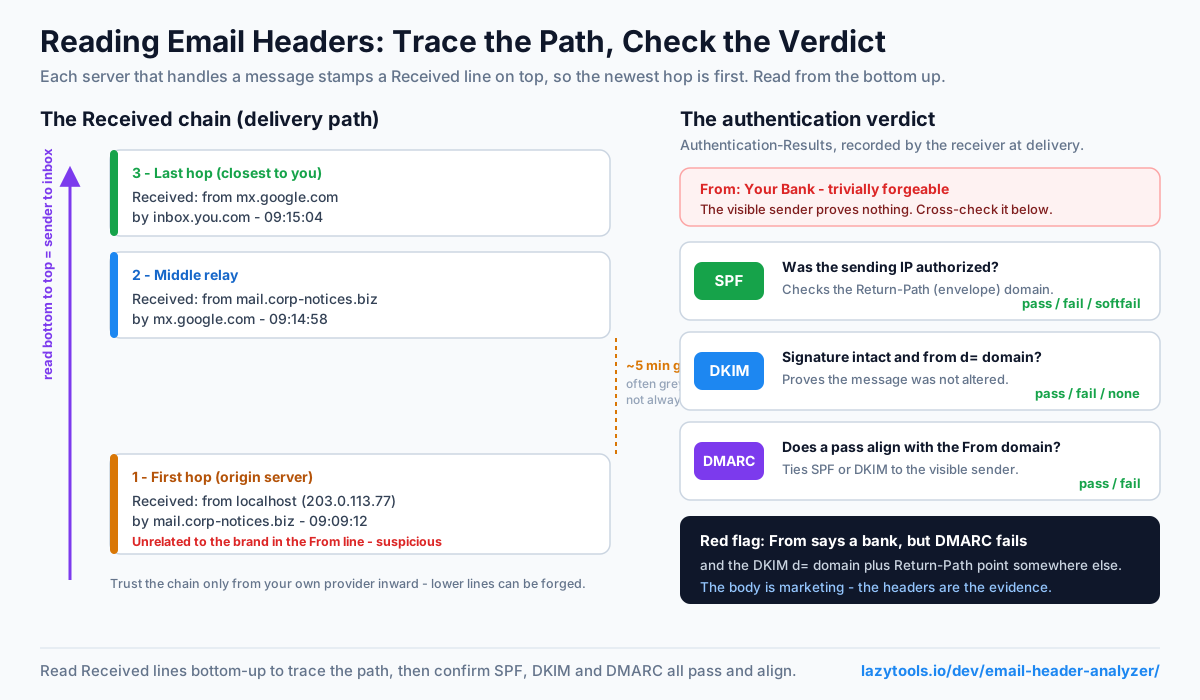
The most useful headers are the Received lines. Each mail server that touches a message stamps one
on top, so they record the whole journey, but newest first. The last server (closest to you) is at
the top; the original sender’s server is at the bottom.
Received: from mx.example.com by inbox.example.com … 14:30:20   ← last hop
Received: from relay.sender.net by mx.example.com … 14:30:05
Received: from user-pc.sender.net by relay.sender.net … 14:30:00 ← first hop
Read from the bottom up to follow the path in order. Each header says from one host by another,
with a timestamp, so you can also measure the delay at each hop. Most are near-instant; a gap of
minutes usually means greylisting (the receiver temporarily deferring an unknown sender) or a queue
backlog, not a problem with your message.
A worked example
Suppose a message you received has this chain (simplified, read bottom to top):
Received: from mail.corp-notices.biz (198.51.100.20) by mx.google.com … 09:14:58
Received: from localhost (unknown [203.0.113.77]) by mail.corp-notices.biz … 09:09:12
Two things jump out. First, there is a roughly five-minute gap between the two hops, plausible for
greylisting, but worth noting. Second, and more telling, the message claims in its From to be from a
well-known bank, yet the earliest server it passed through is mail.corp-notices.biz on an unrelated IP.
That mismatch between the visible brand and the actual originating infrastructure is the thread you pull
on next by checking authentication.
SPF, DKIM, DMARC: is it really from who it says?
Because the visible From line is trivially forgeable, mail relies on three checks (SPF, DKIM and DMARC), and the receiving
server records their results in an Authentication-Results header:
| Check | What it proves | Common results |
|---|---|---|
| SPF | The sending server’s IP was authorized to send for the envelope (Return-Path) domain | pass, fail, softfail, neutral, none |
| DKIM | A cryptographic signature proves the message wasn’t altered and came from the signing domain (d=) | pass, fail, none |
| DMARC | Ties a passing SPF or DKIM result to the visible From domain (alignment) and sets the policy on failure | pass, fail |
A row like spf=pass; dkim=pass; dmarc=pass means the receiver believed the message. The crucial idea is
alignment: SPF and DKIM can each pass for some domain, but DMARC only passes when one of them passes
for the same domain shown in the From line. That is what stops an attacker from getting a green SPF result
on their own throwaway domain while displaying a bank’s name to you. A fail on something claiming to
be from a bank or a colleague is a strong spoofing signal.
Key point: these results are what the receiving server recorded at delivery time. Reading them from the headers is not the same as re-running a live DNS check now, and for investigating a message you already received, the recorded verdict is the one that matters.
Spotting a spoof
Put it together to sanity-check a suspicious message. No single field is proof on its own, but the pattern across them usually tells the story:
- Did SPF, DKIM and DMARC pass? A failure on a “trusted brand” email is a red flag. Legitimate large senders almost always authenticate.
- Do the DKIM
d=domain, the Return-Path and the visible From all point at the same organisation? AFromthat says a bank while theReturn-Pathand DKIM signer point somewhere unrelated is a classic spoof. - Is there a surprising
Reply-Toaimed at a free webmail address that has nothing to do with the claimed sender? That is a common way to route your reply to the attacker. - Follow the Received chain, but only trust it from your own infrastructure inward. A sender can forge
the lower
Receivedlines before the message reaches a server you control; only the hops added by your own provider are guaranteed genuine.
None of this requires you to click a link or open an attachment, which is exactly why header analysis is a safe first move on anything that looks off.
Why the headers, not the body
Phishing and spoofing work by making the visible parts of a message convincing, the logo, the display name, the tone. The headers are much harder to fake convincingly all the way through, because the servers you trust add their own stamps and authentication verdicts after the message leaves the sender’s control. That is the whole reason security teams and mail admins reach for the headers first when triaging a report: the body is marketing, the headers are evidence.
Analyze headers privately
Email headers hold real names, addresses and internal hostnames, so you don’t want to paste them into a
random website. The Email Header Analyzer reads them entirely in your
browser: paste the headers (or drop a .eml) and it lays out the delivery path with per-hop delays, shows
the SPF/DKIM/DMARC results the receiver recorded, and pulls out the From, Return-Path, Message-ID and DKIM
signing domain, with nothing uploaded. Because the parsing happens on your device, the addresses and
internal hostnames in the headers never leave your machine, which is the right default for anything you’re
investigating precisely because it looks suspicious.
Frequently asked questions
How do I see an email's full headers?
It depends on the client. In Gmail, open the message, click the three-dot menu and choose 'Show original'. In Outlook, open the message and use File → Properties (or 'View message source'). In Apple Mail, use View → Message → Raw Source. Each shows the full headers plus the raw message; copy from the top down to the first blank line to get just the headers.
What are Received headers?
Each mail server that handles a message adds a 'Received' header at the very top recording where it got the message from and which server it is. Reading them from the bottom up traces the message's path from sender to your inbox. They're the most reliable part of the header for tracing, because each trusted server adds its own.
Why are Received headers in reverse order?
Because each server prepends its header to the top, the newest hop (the last server, closest to you) is listed first and the original sender's server is at the bottom. To read the delivery path chronologically, start at the bottom and work up, which is what an analyzer does for you.
What do SPF, DKIM and DMARC results mean in the headers?
They're the receiving server's verdict on whether the message is authentic. SPF checks the sending server was authorized for the domain; DKIM checks a cryptographic signature proving the message wasn't altered and came from the signing domain; DMARC ties those to the visible From address and says what to do on failure. 'pass' is good; 'fail' or 'softfail' on a message claiming to be from a real brand is a red flag.
Can I tell if an email is spoofed from the headers?
Often, yes. Check whether SPF, DKIM and DMARC passed, and whether the DKIM signing domain (d=) and the Return-Path match the visible From address. A From that says a bank but a Return-Path and failing DMARC pointing elsewhere is a classic spoof. Remember the From line itself is trivially forgeable, that's exactly why the authentication results matter.
Is it safe to analyze email headers online?
Headers contain addresses and sometimes internal hostnames, so prefer a tool that works locally. The LazyTools Email Header Analyzer parses everything in your browser and never uploads the headers, so that information stays on your device, unlike services that send your headers to a server.