
how-to
How to Merge, Split and Rotate PDFs Without Uploading Them Anywhere
By Uttam Regmi · Published 2026-07-05 · Updated 2026-08-23 · 6 min read · Fact-checked, sources cited
Merging, splitting and rotating PDFs doesn’t require uploading them, browsers can parse and rebuild PDF files in memory, which matters because the documents people run through PDF tools are contracts, IDs, tax forms and medical records. The four operations below all run locally: start with merge PDF, and verify the claim by using it with your internet disconnected.
Why PDFs are the worst files to upload
Think about what actually passes through PDF tools: signed leases, passports and IDs for verification, bank statements for applications, medical results, employment contracts. “Free online PDF merger, just upload your files” means those files, on someone else’s server, governed by a privacy policy nobody read, retained for however long their disk cleanup runs.
There’s no technical reason for it. The PDF format is a documented, published standard (ISO 32000, originally derived from Adobe’s specification), and open-source libraries like pdf-lib parse and rebuild it entirely in JavaScript, meaning entirely in your browser. The upload exists for the site’s benefit, not the operation’s.
The difference isn’t philosophical; it changes exactly what happens to your file:
| Upload-based tool | Browser-based tool | |
|---|---|---|
| Where the file goes | Transmitted to a remote server | Stays in your browser’s memory |
| Who can read it in transit | Anyone the server trusts, plus the server itself | Nobody. It is never sent |
| Retention | Depends on an unread policy | Deleted when you close the tab |
| Works offline | No | Yes, the proof it never uploads |
| Speed on a big file | Limited by your upload bandwidth | Limited only by your CPU |
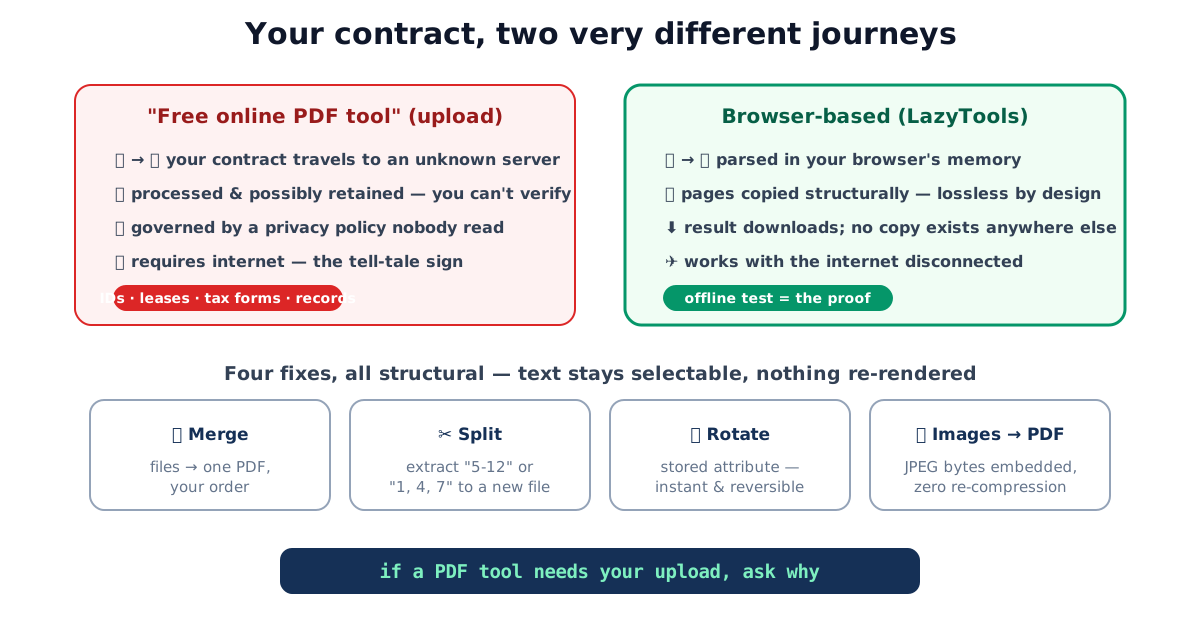
That last row is the honest test. If a tool genuinely processes locally, it keeps working with your Wi-Fi switched off, because there is nothing to send. If it stalls the moment you disconnect, the file was leaving your device.
The four fixes, step by step
Merge several PDFs into one, merge tool: add the files, reorder with the ↑↓ buttons, merge, download. Pages are transplanted as objects into a fresh document, text stays selectable and nothing is re-compressed. Typical uses: assembling an application (form + ID + statement), combining chapter exports, stitching scans.
Extract pages, split tool:
load the PDF, type a range, 5-12, 3, or 1-4, 7, 12-15, and download just those pages as a
new file. The original is never modified. This is how you send the one signed page instead of the
40-page contract.
Fix orientation, rotate tool:
choose 90°, 180° or 270° and apply to all pages or a range. PDF pages carry a rotation attribute
that viewers honor, so this is a metadata change: instant, lossless, reversible. The duplex-scanner
classic, every second page upside down, is range 2, 4, 6, … at 180°.
Photos → one PDF, images-to-PDF tool: add JPG/PNG photos in order; each becomes a page matched to its image’s dimensions. JPEG bytes are embedded without re-encoding, so quality is exactly what you photographed. One practical note: the PDF is roughly the sum of its images, and phone photos run 3-8 MB each, if a portal caps uploads, run photos through the image compressor first (also local), which typically cuts the result by 80%+.
What “lossless” means here, precisely
A PDF page isn’t a picture, it’s a program of drawing instructions (text runs, vector paths, embedded images). Merging and splitting copy those objects intact between documents; rotation adds an attribute. Nothing is rasterized, so:
| Property | After merge/split/rotate |
|---|---|
| Text selectability & search | preserved |
| Vector sharpness at any zoom | preserved |
| Embedded image compression | untouched (byte-identical) |
| Internal links | preserved |
| File size | ≈ sum of copied pages, no inflation |
The one operation that is generative: images-to-PDF creates new page objects around your images, but embeds the image bytes themselves unmodified.
A worked example: assembling a rental application
Say a letting agent asks for a single PDF containing, in order: a filled application form, your photo ID, and last month’s bank statement, and the portal caps uploads at 10 MB. Here is the whole job, start to finish, without a byte leaving your laptop:
- Photograph the ID. Two phone photos (front and back) at roughly 5 MB each.
- Turn the photos into a PDF. Open images-to-PDF, add both JPGs in order,
download
id.pdf, a two-page file that looks exactly like your photos. - Extract the statement page you actually need. Your bank export is 12 pages; the agent wants
only the summary page. Open split PDF, enter range
1, and download a one-pagestatement.pdf. The original 12-page file is untouched. - Merge in order. Open merge PDF, add
application-form.pdf,id.pdf, thenstatement.pdf, confirm that list order, and download the combined file. - Check the size. If the two ID photos pushed the total over 10 MB, run them through the image compressor first and rebuild, a phone photo of a document usually survives heavy compression with no readability loss.
Every step above runs in your browser. The finished application PDF is the first time the documents travel anywhere, and then only to the recipient you chose, not to a PDF-tool middleman.
Choosing the right operation
The four tools overlap less than people assume. A quick map of intent to tool:
| You want to… | Use | Lossless? |
|---|---|---|
| Combine files into one document | merge | Yes |
| Pull out or drop specific pages | split | Yes |
| Fix a sideways or upside-down scan | rotate | Yes |
| Make a PDF from photos or images | images-to-PDF | Images embedded as-is |
| Shrink an oversized file | image compressor then rebuild | No, lossy by design |
Reach for compression only when a size cap forces it; the other four preserve the document exactly.
Common PDF mistakes
- Uploading sensitive documents to “free” tools, the whole category runs fine locally; demand tools that prove it by working offline.
- Re-scanning to fix orientation, rotation is a one-click lossless attribute change, not a reason to redo a 30-page scan.
- Sending the whole contract when one page was asked for, extraction takes seconds and shares less.
- Emailing 25 MB of raw phone photos as a “PDF scan”, compress the images first; the recipient’s inbox will thank you.
- Fighting an encrypted PDF, no tool can parse it without the password; save an unprotected copy from your viewer first, then proceed.
Quick summary
Everything routine you do to PDFs, merge, split, rotate, photos-to-PDF, works in the browser, losslessly, with the file never leaving your device. Given that PDF tools handle the most sensitive files people share, “works offline” isn’t a nice-to-have; it’s the test worth applying to any document tool before trusting it.
Related tools: image compressor · file encryption, for PDFs that must stay confidential in transit. Parsing is by the open-source pdf-lib library, running in your browser.
Frequently asked questions
Are free online PDF tools safe for sensitive documents?
Upload-based ones deserve skepticism: your contract or ID travels to a server you know nothing about, subject to a privacy policy you didn't read. Browser-based tools remove the question, the file is processed in your browser's memory and never transmitted, which you can verify by disconnecting from the internet.
Does merging or splitting PDFs lose quality?
No. These are structural operations. Pages are copied as objects into the new document without re-rendering: text stays selectable, vectors stay sharp at any zoom, and images keep their original compression byte-for-byte.
How do I merge PDFs in a specific order?
Add the files, then reorder them in the list before merging, output follows list order, with each file's pages keeping their internal sequence. Merging happens in one pass regardless of file count.
How do I pull just a few pages out of a big PDF?
Use the split tool with a range like 5-12 or 1, 4, 7. It copies exactly those pages into a new file and leaves the original untouched. Run it again for each separate piece you need.
How do I turn phone photos of documents into one PDF?
The images-to-PDF tool: add the JPGs in order, and each becomes a page sized to its image. JPEG bytes are embedded without re-compression, so the PDF looks exactly like your photos. Compress oversized photos first if a portal has a size cap.
Can I fix a PDF that scanned sideways or upside down?
Yes, rotation is a stored page attribute, so the rotate tool fixes it losslessly and instantly, for all pages or a range (the classic duplex-scanner fix is rotating just the even pages 180°).
What about password-protected PDFs?
Encrypted PDFs can't be parsed without the password, so they won't load. Open the file in your PDF viewer with the password, save an unprotected copy, then run the operation on that.