
explainer
PDF Accessibility After the EAA: What a Screen Reader Actually Needs From Your PDF
By Uttam Regmi · Published 2026-07-08 · Updated 2026-07-08 · 7 min read · Fact-checked, sources cited
A PDF is accessible when a screen reader can actually read it, and whether it can is mostly determined by six machine-checkable foundations: tags, language, title, a real text layer, alt text, and headings. Since 28 June 2025 the European Accessibility Act has made this a legal question for documents inside e-commerce, banking, e-book and transport services, not just a courtesy. Triage any document in seconds with the PDF accessibility checker, analysed locally in your browser, nothing uploaded.
Why this stopped being optional
Accessibility law in Europe used to stop at the public sector (the Web Accessibility Directive). The European Accessibility Act changed the perimeter: since 28 June 2025 it covers private-sector services, e-commerce, consumer banking, e-books, passenger transport, and the documents those services produce. A bank statement, an online-shop invoice, an e-book, a ticket confirmation: if the service is in scope, its PDFs effectively are too, with some transition arrangements running to 2030.
Which raises the practical question this guide answers: what does “accessible” mean for a PDF, concretely, and how do you check?
It helps to know how the law actually names the target. The EAA is a directive, so it sets outcomes rather than a file-format checklist; the technical detail lives in the European harmonised standard EN 301 549, which in turn leans on WCAG 2.1 Level AA for content and on PDF/UA for the document format itself. So when someone says a PDF must be “EAA compliant,” the operational translation is: tagged, structured, and conformant to those standards. Nobody is going to hand-inspect your invoices, but the six foundations below are exactly what a regulator, an auditor, or an angry customer’s screen reader will expose first.
What a screen reader actually needs
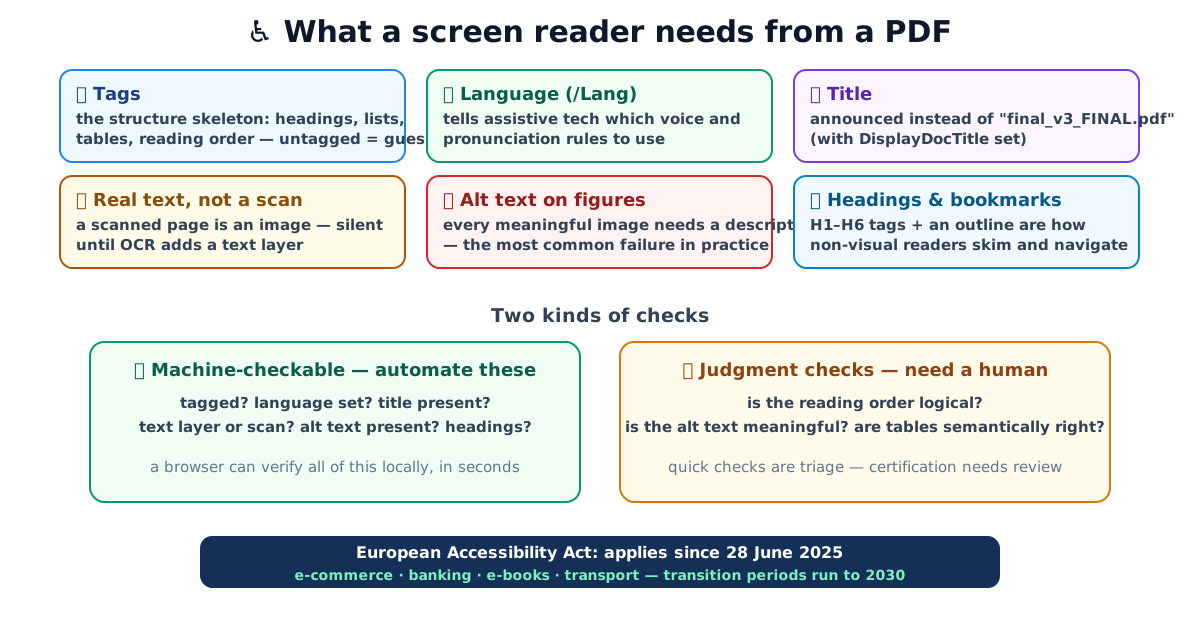
Tags are the big one. A tagged PDF carries a structure tree labelling every piece of content, heading, paragraph, list, table, figure, in reading order. That tree is what assistive technology navigates. Untagged, a screen reader has to reverse-engineer meaning from coordinates on the page; anything beyond a simple linear letter comes out scrambled.
Language (/Lang in the document catalog) tells the screen reader which voice and
pronunciation rules to load, a German document read with English phonetics is technically
“spoken” and practically useless. Title metadata (plus the DisplayDocTitle preference)
replaces final_v3_FINAL.pdf in what gets announced. A real text layer separates a document
from a photograph of one: scanned pages are silent until OCR. Alt text on figures is the most
commonly missed item in otherwise-tagged documents. Headings and bookmarks are how non-visual
readers skim, a 40-page report with no H1-H6 tags is a wall of undifferentiated prose.
The machine/human split
The PDF accessibility standard, PDF/UA (ISO 14289), tested via the Matterhorn Protocol’s 31 checkpoints, which expand into 136 individual failure conditions, divides cleanly into conditions software can verify and conditions requiring judgment. The Protocol itself flags each failure condition as machine-checkable or human-only, which is precisely why no tool can rubber-stamp a document on its own:
| Machine-checkable (automate) | Judgment (human review) |
|---|---|
| Is the document tagged? | Is the reading order logical? |
| Language declared? | Is the alt text meaningful? |
| Title present + displayed? | Are tables semantically correct? |
| Text layer or scan? | Are decorative images correctly ignored? |
| Alt text present on figures? | Do headings reflect real hierarchy? |
The left column is triage, fast, deterministic, and catches the majority of real-world failures. The browser checker runs exactly that column, locally: pdf.js reads the tagged flag, catalog entries, text content and structure tree without the document ever leaving your machine. The right column is why “this tool certifies your PDF” claims should make you suspicious, no automated tool can.
Why check in a browser at all?
The established tooling has awkward gaps: PAC, the de-facto standard checker, is Windows-only (Mac users on Adobe’s forums have been asking for years); commercial checkers are desktop installs; and the web-based options upload your document to a server to analyse it. The documents that need accessibility checks, bank statements, contracts, internal reports, are usually the ones that shouldn’t be uploaded anywhere. A browser-local checker covers the triage column on any OS, offline, with the file staying in memory on your device.
A worked triage: one invoice, sixty seconds
Suppose you drop a customer invoice, Invoice_2026_0642.pdf, exported straight from an accounting
package, into a browser checker. A realistic result looks like this:
- Tagged? No. The accounting tool printed to PDF without a structure tree.
- Language? Absent. There is no
/Langentry in the catalog. - Title? Present but useless. It reads
Microsoft Print to PDF, not “Invoice 0642”. - Text layer? Yes. The numbers and line items are real, selectable text, not a scan.
- Alt text? The company logo is an untagged image with no alternative description.
- Headings? None. “Invoice”, “Bill To”, “Totals” are all styled as ordinary paragraphs.
That is five of the six foundations failing on a document that looks immaculate on screen. A screen-reader user would hear an unnamed file, in the wrong pronunciation, read as one undifferentiated run of text with a logo announced as “image” and no way to jump to the total. None of those failures is subtle once you know to look, and every one of them is fixable in the export step rather than in the finished PDF.
From failure to fix, at a glance
Each machine-detectable failure maps to a concrete, source-side remedy. This is the reference to keep next to the checker output:
| Failure the checker finds | What a screen reader does | Where you fix it |
|---|---|---|
| Not tagged | Guesses structure from layout; usually scrambles it | Re-export with “tagged PDF” / accessibility enabled |
| No text layer (scan) | Reads nothing, silent pages | Run OCR, then tag |
No /Lang | Wrong pronunciation engine | Set document language in the authoring tool |
| Missing / filename title | Announces the file name | Fill the Title field; enable DisplayDocTitle |
| No alt text on figures | Says “image” or skips it | Add alt text to meaningful images; mark decorative ones as artifacts |
| No headings | No way to skim; wall of text | Apply real heading styles (H1-H6) before export |
Fixing what the checks find
The efficient fix is almost always upstream, at the source document:
- Untagged / no headings / no alt text: re-export from the authoring tool with accessibility enabled, Word, LibreOffice and InDesign all generate tags, heading structure and alt text from the document’s own styles. Retrofit-tagging in a PDF editor is the slow path.
- Scanned pages: OCR first (many scanners and PDF tools include it), then tag.
- No language / no title: two fields in the export dialog or document properties, the cheapest wins available.
- Then re-check, and for certification-grade conformance, finish with PAC plus a human pass over reading order, alt-text quality and tables.
Quick summary
The EAA moved PDF accessibility from good practice to legal requirement for documents inside covered services, and the failures that matter most are boring and detectable: no tags, no text layer, no language, no title, no alt text, no headings. A browser can verify all of those locally in seconds, the PDF accessibility checker does exactly that, with honest scope (triage, not certification) and zero upload. Fix findings at the source document, re-check, and reserve the heavy tooling and human review for the judgment calls no machine can make.
Sources: AccessibleEU, EAA in effect June 2025 · PDF Association, Matterhorn Protocol · PAC, PDF Accessibility Checker · ISO 14289 (PDF/UA)
Frequently asked questions
Does the European Accessibility Act really cover PDFs?
Indirectly but effectively, yes. The EAA (applying since 28 June 2025) covers services, e-commerce, consumer banking, e-books, transport, and documents that form part of those services, like statements, invoices, tickets and manuals, inherit the accessibility requirement. Some arrangements have transition periods running to 2030. Public-sector documents were already covered by the Web Accessibility Directive.
What is a tagged PDF?
A PDF with an internal structure tree that labels content as headings, paragraphs, lists, tables and figures, in reading order. Tags are what a screen reader navigates, an untagged PDF forces assistive technology to guess structure from visual layout, which fails for anything non-trivial.
What are the most common PDF accessibility failures?
In rough order of frequency: not tagged at all; scanned image-only pages with no text layer; missing document language; missing or filename-like titles; images without alt text; and content tagged as plain paragraphs with no headings. All six are machine-detectable in seconds.
What is PDF/UA and the Matterhorn Protocol?
PDF/UA (ISO 14289) is the ISO standard for universally accessible PDF. The Matterhorn Protocol is its testing model, 31 checkpoints broken into failure conditions, some machine-checkable and some requiring human judgment. That split is why no automated tool can 'certify' a PDF alone.
Can a browser really check PDF accessibility without uploading the file?
The machine-checkable foundations, yes, a browser PDF engine can read the tagged flag, language, title, text layer, structure tags and alt text entirely locally. Judgment checks (reading order logic, alt-text quality, table semantics) still need a human, and certification-grade validation needs dedicated tools like PAC.
My PDF fails the checks, where do I fix it?
At the source, not in the PDF: re-export from Word/LibreOffice/InDesign with accessibility options enabled (they generate tags, headings and alt text from the document's own structure). For scans, run OCR first. Retrofitting tags by hand in a PDF editor is the slow last resort.