
explainer
How to Convert a PDF to JPG Without Uploading It
By Uttam Regmi · Published 2026-07-12 · Updated 2026-08-23 · 6 min read · Fact-checked, sources cited
You need one page of a PDF as an image, for a slide, a forum post, a preview. You search “PDF to JPG,” click the first result, and upload your contract to a server you know nothing about. That last step is the problem. Converting a PDF to an image is simple enough to do entirely on your own machine, and for anything sensitive, that’s exactly where it should happen.
Why “upload to convert” is the wrong default
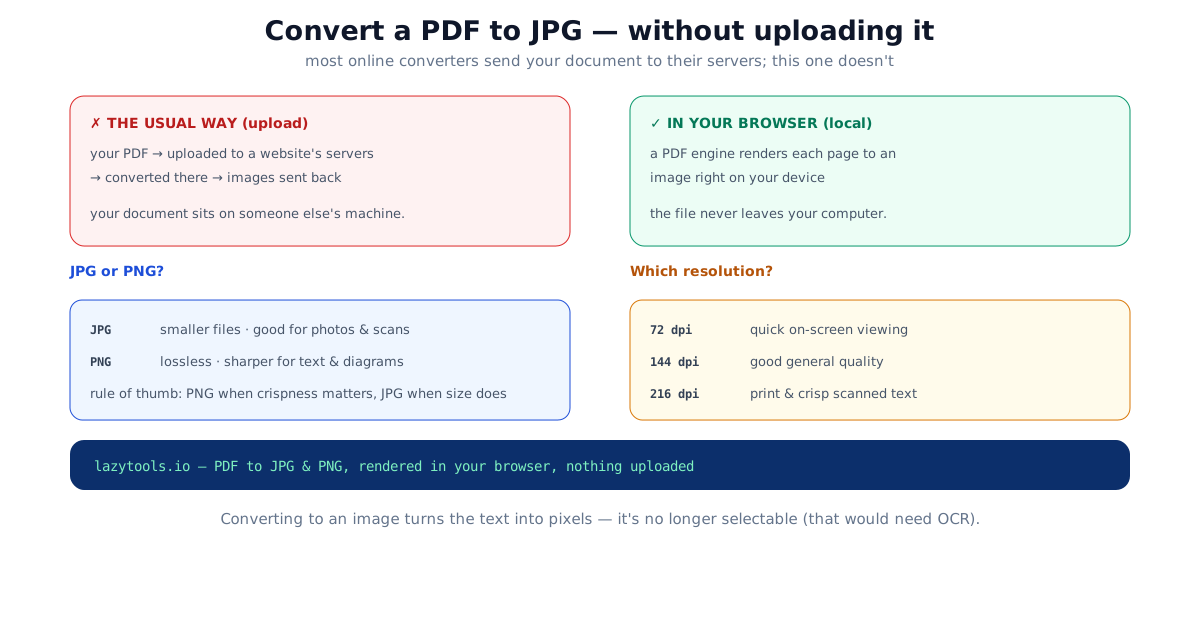
The big-name PDF sites (iLovePDF, Smallpdf, Adobe’s online tools and the rest) do the conversion on their servers: you upload the PDF, they render it and send images back. For a meme or a blank form, fine. For a signed contract, a bank statement, a passport scan or a medical record, you’ve just handed a copy to a third party, where it may be cached, logged or retained per their policy. Once it’s uploaded, you can’t take it back.
Most of these services do say they delete files after a set window (often an hour or so), and that’s usually true. But “we delete it later” is a very different guarantee from “it was never sent anywhere.” Deletion depends on the operator keeping their promise, on their backups not retaining a copy, and on the transfer itself not being intercepted or logged along the way. The stronger position is to never create the second copy in the first place.
The good news: turning a PDF page into an image is pure rendering, the exact thing your browser already does to display a PDF. There’s no reason it has to leave your device.
Converting in the browser
A client-side converter uses a PDF rendering engine (the same open-source pdf.js, maintained by Mozilla, that powers in-browser PDF viewing) to draw each page onto an HTML <canvas>, then exports that canvas as a JPG or PNG. It all happens locally in JavaScript, no upload, and it keeps working even with your network disconnected, which is a quick way to prove nothing is being sent.
The PDF to JPG tool does exactly this: open a PDF, pick your format and resolution, and each page becomes an image you can download individually or all at once (a multi-page PDF is typically zipped for a single download). The file never touches a server. Going the other way, stitching images into a single PDF, is the JPG to PDF tool.
A quick sanity check
Want to confirm the claim rather than take it on faith? Load the converter page, then turn off Wi-Fi or unplug the network and run a conversion. If it still produces your images, the work is happening on your own machine. A server-based tool would simply fail at that point.
JPG or PNG? A side-by-side
Both formats produce a flat raster image; the difference is how they compress it.
| JPG | PNG | |
|---|---|---|
| Compression | Lossy (discards fine detail) | Lossless (pixel-perfect) |
| File size | Smaller, adjustable via quality | Larger |
| Text & sharp edges | Can show soft “halos” around letters | Stays crisp |
| Photos & scans | Excellent | Fine, but larger for no gain |
| Transparency | Not supported | Supported |
| Best for | Photos, scanned pages, email, quick previews | Text pages, tables, diagrams, line art, screenshots |
Rule of thumb: PNG when crispness matters (text-heavy pages, tables, technical drawings), JPG when file size matters (photographic pages, quick previews, attachments you want to keep small). JPG’s compression is tuned for smooth gradients like photographs; it struggles with the hard black-on-white edges of text, which is exactly where PNG shines.
Choosing the resolution
Resolution is the sharpness-versus-size trade-off. A PDF page is defined in points, where 1 point equals 1/72 inch, so rendering a page at “72 dpi” reproduces it at its natural on-screen size, and doubling to 144 dpi doubles the pixels along each edge (roughly four times the total pixel count and file size).
Here is what that works out to for a standard A4 page (8.27 × 11.69 inches):
| Resolution | Approx. pixels (A4) | Good for |
|---|---|---|
| 72 dpi | ~595 × 842 | Quick on-screen viewing, thumbnails |
| 144 dpi | ~1190 × 1684 | General-purpose, most web and slide uses |
| 216 dpi | ~1785 × 2525 | Sharp text, larger previews |
| 300 dpi | ~2480 × 3508 | Printing and archiving scanned documents |
US Letter pages (8.5 × 11 inches) come out slightly wider and shorter, about 2550 × 3300 pixels at 300 dpi. 300 dpi is the long-standing benchmark for print because it comfortably exceeds what the eye resolves at normal reading distance.
The key limitation: zooming in later won’t add detail that wasn’t captured. If there’s any chance you’ll print the image or crop into a small region of it, render high from the start. You can always shrink a large image, but you can’t recover detail you never rendered.
Worked example: a two-page contract for e-signature
Say you need to email one page of a signed agreement as an image. Choose PNG so the signature and clause text stay crisp, and render at 144 dpi, sharp enough to read comfortably on any screen, without ballooning the attachment. That single A4 page lands around 1190 × 1684 pixels, which most mail clients send without complaint. If the recipient will print it for their files, step up to 216 or 300 dpi instead and accept the larger file.
One thing to remember
Converting a page to an image turns the text into pixels. The result looks identical but is no longer selectable, searchable or editable, it’s a picture. If you need the words back as text, that requires OCR (optical character recognition), a separate step. For sharing a page as an image, that’s exactly what you want; just don’t expect to copy-paste text out of the result, and don’t rely on it being findable by a document search later.
There’s a privacy angle here too: because the output is flat pixels, it won’t carry any hidden PDF layers, form-field values, or comment metadata that were tucked into the original. What you see in the image is genuinely all that’s there, which can be reassuring when you’re sharing a single page and want to be sure nothing rides along invisibly.
Need to shrink the images afterward? Run them through the image compressor, also entirely in your browser. Every LazyTools file tool works this way on purpose: the document you’re converting is the one that should never be uploaded.
The PDF to JPG tool renders pages with pdf.js entirely in your browser; the PDF is never uploaded. Output images are rasterised, so text is not selectable (use OCR for that). This is general how-to information. Source: pdf.js, the Mozilla PDF rendering engine used for in-browser rendering.
Frequently asked questions
How do I convert a PDF to JPG?
Open the PDF in a converter, choose JPG and a resolution, and each page is turned into an image you can download. A browser-based tool does this locally with a PDF rendering engine, so nothing is uploaded. You just pick the format and save the pages.
Can I convert a PDF to JPG without uploading it?
Yes. A client-side tool renders the PDF's pages to images directly in your browser using JavaScript, so the file never leaves your device and it works offline. That's the safe choice for contracts, statements, IDs or anything confidential.
Should I convert to JPG or PNG?
JPG makes smaller files and is fine for photos and scanned pages. PNG is lossless and stays sharp for text, tables and line art, at the cost of a larger file. Choose PNG when crispness matters, JPG when file size does.
What resolution should I use for a PDF to image?
72 dpi is enough for on-screen viewing, 144 dpi for good general quality, and 216 dpi or higher for printing or keeping scanned text readable. Higher resolution means sharper images but larger files.
Will the text still be selectable after converting to JPG?
No, converting a page to an image turns the text into pixels, so it's no longer selectable or searchable. To recover editable text from an image you'd need optical character recognition (OCR), which is a separate process.
Why would I convert a PDF to images?
To embed a page in a slide or document, post it where PDFs aren't supported, attach a preview, or send a single page as a picture. Images are universally viewable, which PDFs aren't always.