
explainer
WiFi QR Codes: How They Work, the WIFI: Format, and How to Make One Safely
By Uttam Regmi · Published 2026-07-11 · Updated 2026-08-23 · 7 min read · Fact-checked, sources cited
A WiFi QR code simply encodes a plain-text string, WIFI:T:WPA;S:MyNetwork;P:mypassword;;, that
phones understand natively, so scanning it joins the network with no password typing. Get the format
right (including escaping special characters) and encode it directly rather than through a tracking
redirect, and the code works forever. Make one privately with the
WiFi QR code generator; here’s how it works.
The format, decoded
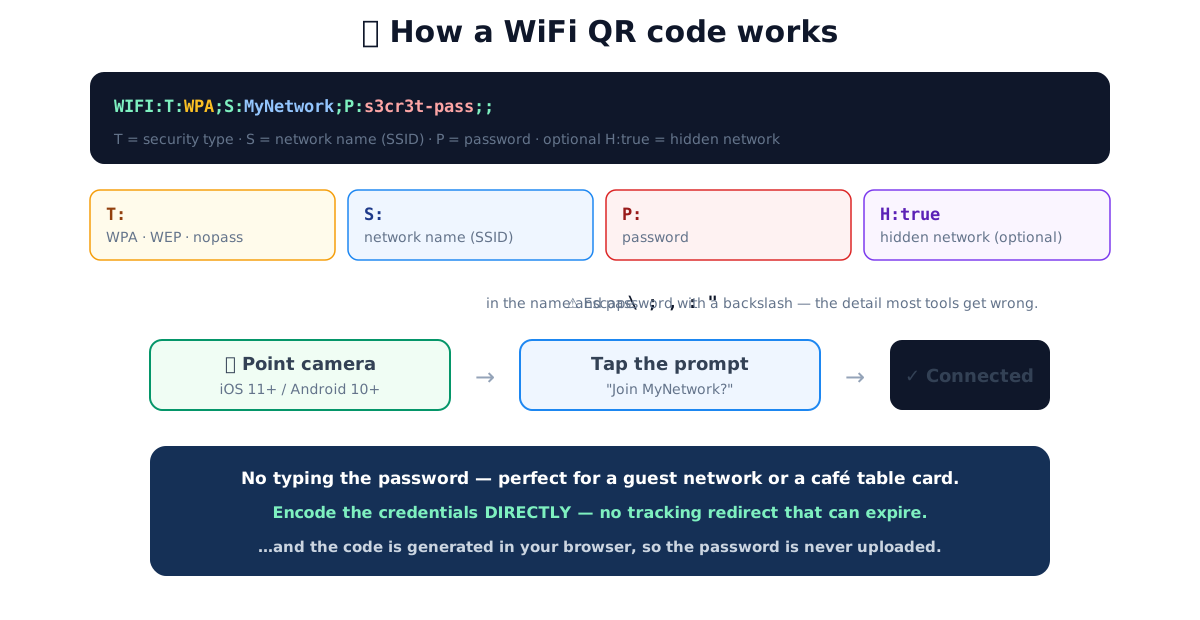
A WiFi QR code is nothing exotic, it’s an ordinary QR code (the same ISO/IEC 18004 barcode you see on posters and packaging) whose content happens to be a short, structured string:
WIFI:T:WPA;S:MyNetwork;P:mypassword;H:false;;
- T, the security type:
WPA(use this for WPA, WPA2 and WPA3),WEPfor old routers, ornopassfor an open network. - S, the SSID (network name).
- P, the password (omit for
nopass). - H, optional;
truefor a hidden network.
The record opens with the literal prefix WIFI: and each field is a KEY:value pair separated by a
semicolon; the two semicolons at the end close the record. Field order isn’t strictly fixed, but the
T;S;P order above is what almost every scanner expects, so it’s the safe default. Phones running
recent versions of iOS and Android recognise this format and, when the camera sees it, offer to join the
network with a single tap.
The three security types, side by side
The T field is the one people most often set wrong. Here’s what each value means and when to use it:
T value | Router security | Use it when | Password field |
|---|---|---|---|
WPA | WPA, WPA2 or WPA3 | Almost every modern home or office network | Required |
WEP | Legacy WEP | Only very old hardware, WEP is insecure, replace the router if you can | Required |
nopass | Open (no encryption) | Genuinely open networks with no password | Omit the P field |
The most common mistake is picking WEP because it “sounds older and simpler.” Unless your router is
genuinely from the WEP era, choose WPA. It covers WPA2 and WPA3 too, since the QR scheme never got
separate keywords for the newer generations.
Scan-to-join: which phones, and how
On a modern phone the flow is: open the camera, point it at the code, wait for the notification banner, tap it, confirm Join. No third-party app, no typing.
- iPhone, the built-in Camera app has read WiFi QR codes since iOS 11 (2017). Point the camera and a “Join network …?” banner drops down.
- Android, support is more fragmented, but from Android 10 (2019) onward the stock camera or the Wi-Fi settings screen can both scan a WiFi QR and offer to connect.
If a phone is older than that, or runs a heavily customised camera app, the fix is any dedicated
QR-scanner app, the code itself is standard, so anything that reads the WIFI: string will work.
The detail most tools get wrong: escaping
If your network name or password contains any of \ ; , : ", those characters must be escaped with a
backslash, or the string breaks. For a password like p;ass:word, the correct encoding is
P:p\;ass\:word. Get this wrong and the code either fails to scan or joins with the wrong password, which is maddening to debug because the QR looks fine. The
WiFi QR generator escapes these automatically.
A worked example
Say your network is called Cafe;Corner and the password is Flat White, 4:30. Both contain reserved
characters, a semicolon in the name, and a comma and colon in the password. Encoded correctly, the
string becomes:
WIFI:T:WPA;S:Cafe\;Corner;P:Flat White\, 4\:30;;
Notice the backslashes before the ;, the , and the :, but not before the space, which needs no
escaping. Skip any one of those backslashes and a scanner will either read the fields incorrectly
(splitting the SSID at the semicolon) or join with a mangled password. This is precisely the kind of edit
you don’t want to make by hand, which is why a generator that escapes for you is worth using.
Is it safe?
Two different questions hide here:
- Does the code contain my password? Yes. It has to, so the phone can connect. Treat a printed WiFi QR code like the password written on the wall: anyone who can photograph it can join. For a code you’ll display publicly (a café, an office lobby), use a separate guest network rather than your main one.
- Is it generated safely? This is where the tool matters. A good generator builds the code in your browser and never sends your password anywhere. Pasting your WiFi password into a site that uploads it is the risk to avoid.
Why some WiFi QR codes expire (and ours don’t)
Here’s a trap with “free WiFi QR” sites: some encode a redirect through their own domain instead of
the WiFi credentials directly. The QR points at their-tracking-site.com/xyz, which then hands over the
network details, so every scan pings their server, they can track usage, and the code stops working
the day they shut the service down or change their pricing.
Encoding the WIFI: string directly into the code avoids all of that: there’s no middleman, nothing
to track, and the code can’t expire. That’s how the
WiFi QR generator works, and the same principle applies to the
vCard contact QR and the other data-type QR tools.
Printing and display: making the code actually scan
A directly-encoded WiFi code holds every character of your credentials, so a long, complex password produces a denser QR with more little modules packed in. Two practical rules follow from that:
- Give it size and contrast. Print it dark-on-light, keep the quiet zone (the white margin around the code) clear, and don’t shrink a dense code so small that phone cameras can’t resolve the modules. As a rough guide, a code on a table tent or lobby sign wants to be a few centimetres across at minimum.
- Mind error correction. QR codes carry redundancy at one of four levels, roughly 7%, 15%, 25% and 30% of the code recoverable if damaged (levels L, M, Q and H). Higher correction survives smudges and a centred logo, but adds modules and makes the code denser. Medium is a sensible default; only reach for the highest level if the code will be printed small or handled roughly.
If a code won’t scan, the usual culprits are a too-small print, poor contrast, a missing quiet zone, or a mis-escaped special character, check those before assuming the network itself is the problem.
A quick troubleshooting checklist
| Symptom | Likely cause | Fix |
|---|---|---|
| Camera never shows a “Join” prompt | Old OS, or a camera app that doesn’t parse WiFi codes | Use a dedicated QR-scanner app |
| Joins but with the wrong password | Unescaped \ ; , : " in the password | Re-encode with the special characters escaped |
| SSID looks truncated | Semicolon in the network name wasn’t escaped | Escape it as \; |
| Code scans as a URL, not a network | The generator used a tracking redirect | Use a tool that encodes the WIFI: string directly |
| Won’t scan at all | Too small, low contrast, or no quiet margin | Print larger, darker, with a clear white border |
Quick summary
A WiFi QR code encodes WIFI:T:WPA;S:name;P:password;;, which iOS 11+ and Android 10+ read to join a
network with no typing. Escape any \ ; , : " in the name or password, remember the code contains the
password (so use a guest network for public display), and prefer a tool that encodes the credentials
directly, generated in your browser, so the code never expires and your password is never uploaded.
Make one with the WiFi QR code generator.
Sources: the de-facto WIFI: URI scheme supported by iOS and Android camera apps; general QR-code
(ISO/IEC 18004) and networking practice. Educational information, not a substitute for your network’s
own security policy.
Frequently asked questions
How do I make a WiFi QR code?
Enter your network name (SSID), security type and password into a WiFi QR generator; it encodes the standard string WIFI:T:WPA;S:yourname;P:yourpassword;; into a QR code. Scanning that code with a phone camera offers to join the network automatically, no password typing.
What is the WiFi QR code format?
WIFI:T:<WPA|WEP|nopass>;S:<SSID>;P:<password>;H:<true|false>;; where T is the security type, S the network name, P the password, and the optional H marks a hidden network. Special characters (\ ; , : ") in the name or password must be escaped with a backslash.
Do WiFi QR codes work on iPhone and Android?
Yes. iPhones running iOS 11 or later and Android phones running Android 10 or later read WiFi QR codes with the built-in camera app, point, and a 'Join network?' prompt appears. Older phones may need a QR-scanner app.
Is it safe to put my WiFi password in a QR code?
The code does contain your password (that's how the phone can join), so treat a printed code like the password itself, anyone who can scan it can connect. But generating it safely matters: a good tool builds the code in your browser and never uploads the password. Consider a separate guest network for a code you'll display publicly.
Why do some WiFi QR codes stop working?
Because some 'free' generators encode a redirect through their own tracking domain instead of the WiFi credentials directly, the code pings their server on every scan and breaks if they shut the service down. A code that encodes the WIFI: string directly has no middleman and never expires.
Can I make a QR code for a hidden network?
Yes, set the hidden flag, which adds H:true to the string. This tells the phone the network won't appear in the normal list, so it should connect to it by name. For a visible network, leave it off.