
explainer
Text to Speech in Your Browser: How It Works (No Upload, No Account)
By Uttam Regmi · Published 2026-08-06 · Updated 2026-08-23 · 5 min read · Fact-checked, sources cited
Every modern browser can read text aloud, using the same voices your device uses for accessibility, without an account, an upload, or (for local voices) an internet connection. It’s built on the Web Speech API, it’s free, and it’s quietly private, if you pick a local voice. This guide explains how it works, which voices stay on your device versus which ones don’t, why the voice list looks different on every machine, what it’s genuinely good for, and its one real limitation, using the Text to Speech tool.
The browser already has a voice
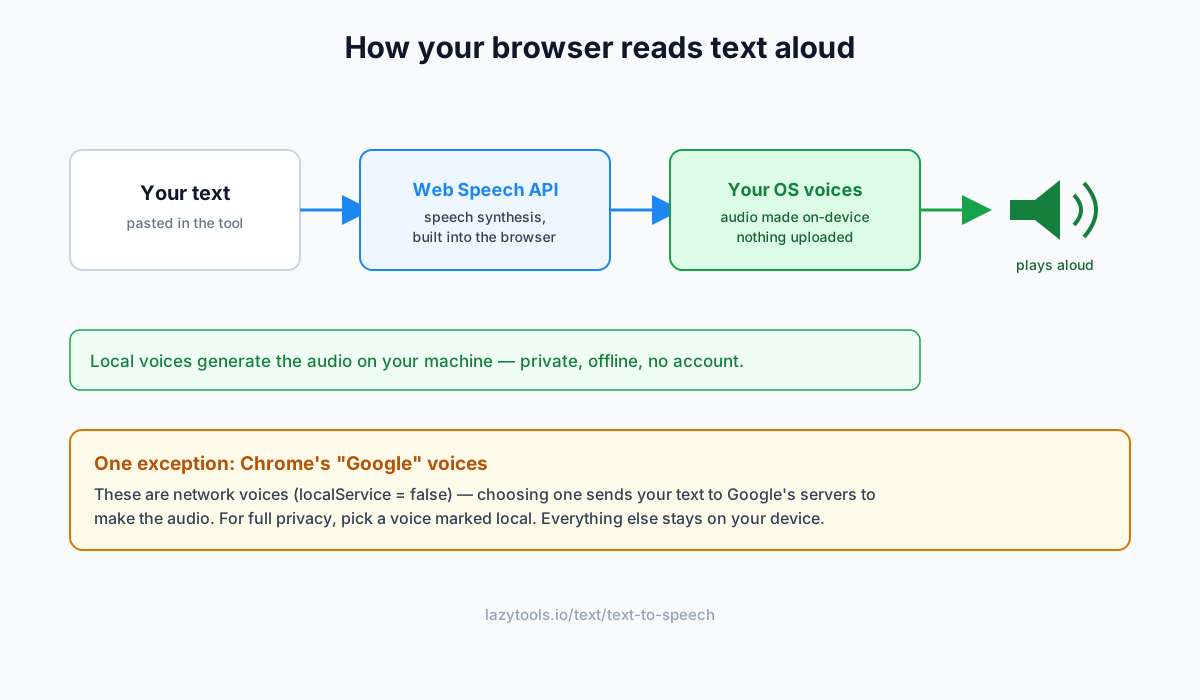
Behind the feature is the Web Speech API’s speech synthesis, built into Chrome, Edge, Safari and Firefox. It taps the text-to-speech voices installed in your operating system, the same ones that power screen readers and “speak selection.” So reading text aloud needs no plugin and no third-party service: you hand the browser some text and it speaks it, using a voice from a list the browser gets from your OS.
A good TTS tool just wraps that engine with controls: pick a voice and language, set the rate, pitch and volume, and play, pause or stop.
Which voices are private (and which aren’t)
This is the part most guides get wrong. Whether your text stays on your device depends on the specific voice you choose:
- Local voices (
localService = true), installed in your OS, they synthesise audio entirely on your machine. Nothing is uploaded. These are the private ones. - Network voices (
localService = false), most notably Chrome’s built-in “Google” voices, which generate the audio on Google’s servers. Choosing one sends your text over the network.
So in-browser TTS can be fully private, just prefer a voice marked local. That’s the opposite of many “free TTS” websites, which stream your text to a cloud engine no matter what and gate it behind sign-up and quotas. Local voices keep your words on your machine and work offline.
Why the voice list differs everywhere
The voices come from your OS and browser, not the website, so the dropdown looks different on every device:
| Platform | Typical built-in voices |
|---|---|
| Windows | David, Zira, Mark + downloadable “natural” voices |
| macOS | Alex, Samantha, Daniel + dozens of language voices |
| iOS / iPadOS | Siri-quality voices, many languages |
| Android | Google TTS voices (varies by device) |
| Chrome (any OS) | Adds network “Google” voices to the OS list |
The upside: you can install more language voices in your operating system’s settings, including high-quality “natural/enhanced” ones, and they appear in the tool automatically. If you want a specific accent or language, add it at the OS level.
Getting good results
- Proofreading, listen to a draft at normal speed; your ear catches missing words, doubled words and clumsy sentences the eye skips right over. It’s the fastest proofreading trick there is.
- Accessibility, for anyone who finds listening easier than reading, or wants to rest their eyes.
- Language learning, pick a voice in the target language to hear pronunciation of words and phrases.
- Skimming vs. studying, raise the rate to 1.3-1.6× to power through an article, or slow it to follow along.
- Punctuate for pauses, commas and periods shape the phrasing, so well-punctuated text reads more naturally.
Downloading audio: two different voices
The browser’s OS voices are built for playback, not capture, the Web Speech API never hands their audio to JavaScript, so those natural voices genuinely can’t be saved to a file. But that isn’t the end of the story. To offer a real download without giving up privacy, the Text to Speech tool includes a Download WAV button powered by a small offline speech engine (eSpeak-NG/meSpeak) compiled to run in your browser. Unlike the Web Speech API, that engine produces the audio samples in JavaScript, so it can build a WAV file and hand it to you, all on your device, nothing uploaded.
The trade-off is voice quality: the downloadable offline voice sounds more robotic than the natural OS voices you hear on Play. So the tool uses the best of both, natural voices for listening, the offline engine for a genuine downloadable file. The engine (about 1 MB) loads only the first time you click download, so it never slows down normal use.
Listen to any text, privately
The Text to Speech tool reads your text aloud with your device’s voices, choose the voice and language, tune the speed and pitch, and play, pause or stop, with nothing uploaded by the tool and no account needed. Pick a local voice, paste a draft, and hear it: your ear will catch what your eyes glossed over.
Frequently asked questions
How do I make my browser read text aloud?
Paste your text into a text-to-speech tool, choose a voice and language, set the speed and pitch, and press play. The browser reads it aloud using the voices installed on your device. The LazyTools Text to Speech tool does this with no account and nothing uploaded.
Is browser text-to-speech private?
With a local (on-device) voice, yes, the audio is generated on your machine by your operating system's voices, so your text isn't uploaded. The exception is Chrome's built-in 'Google' voices, which are network voices: choosing one sends your text to Google. Pick a voice marked local (localService) to keep everything on your device.
Why are the voices different on each device?
The voices come from your operating system and browser, not from the website. Windows, macOS, iOS, Android and each browser ship different sets, so the list you see depends on your setup. You can install extra language voices in your OS settings and they'll show up in the tool.
Can I download the speech as an audio file?
The natural OS voices are playback-only, the Web Speech API never exposes their audio, so they can't be saved. The LazyTools Text to Speech tool works around this with a Download WAV button that uses a small offline speech engine running in your browser to generate a real WAV file on your device (nothing uploaded). That download voice is more robotic than the playback voices, but it gives you a genuine audio file.
What is text-to-speech good for?
Proofreading (hearing a draft surfaces errors you read past), accessibility for people who find listening easier than reading, learning pronunciation in another language, and hands-free listening to articles or notes. Adjusting the rate lets you skim quickly or follow along carefully.
Which browsers support it?
Current Chrome, Edge, Safari and Firefox all support the Web Speech API's synthesis feature. The number and quality of voices varies by browser and operating system, but the basic read-aloud works across all of them.
How do I get better, more natural voices?
Install additional voices in your operating system's language or accessibility settings, modern Windows, macOS, iOS and Android all offer high-quality 'natural/enhanced' voices you can download. Once installed they appear in the browser's voice list automatically, all running on-device.