
how-to
How to Convert Excel to JSON (in Your Browser)
By Uttam Regmi · Published 2026-07-28 · Updated 2026-07-28 · 5 min read · Fact-checked, sources cited

To convert Excel to JSON, treat the first row of your sheet as the field names and turn every following row into an object, the result is an array of objects. The Excel to JSON converter does exactly this in your browser: it reads your .xlsx or .xls with SheetJS, uses row one as the keys, and maps each later row’s cells to those keys. JSON is what most APIs, config files and JavaScript expect, so turning a spreadsheet of data into a JSON array is one of the most common developer chores, and here it happens locally, so the file is never uploaded.
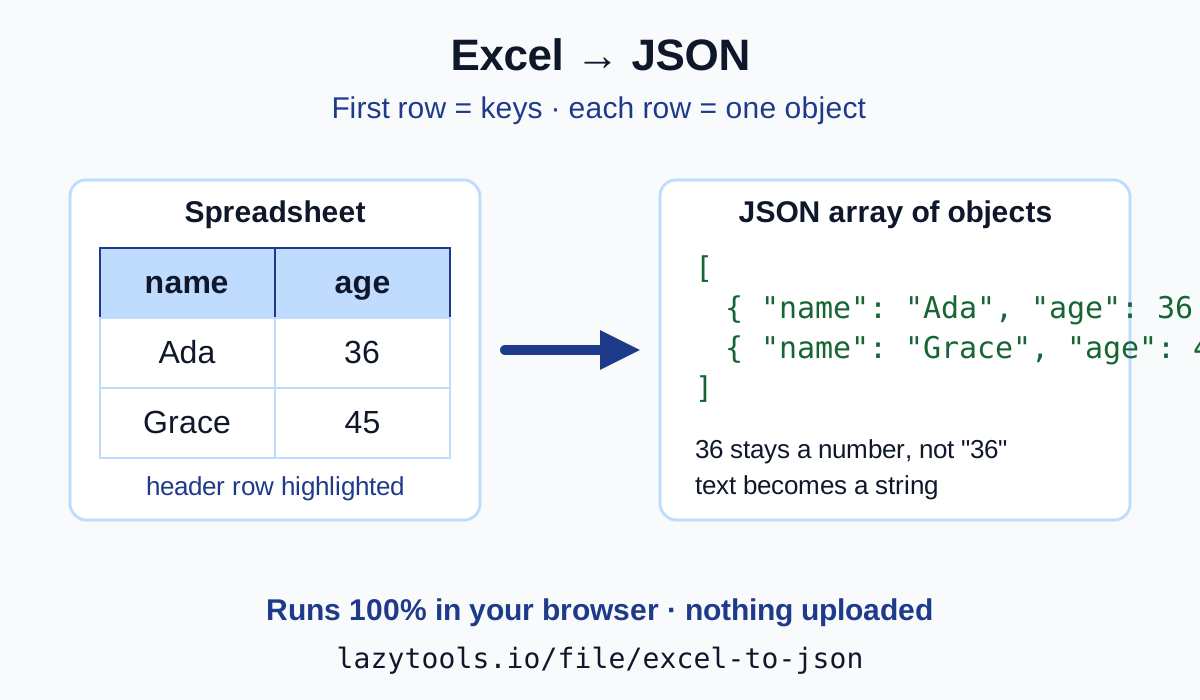
How Excel maps to JSON
The mental model is simple. Take a tiny two-column sheet:
| name | age |
|---|---|
| Ada | 36 |
| Grace | 45 |
Row one holds the field names name and age. Each of the two data rows becomes one object, mapping those names to its cell values. The converter emits an array containing those objects:
[
  { "name": "Ada", "age": 36 },
  { "name": "Grace", "age": 45 }
]
That is the entire transformation. Two data rows in, two objects out, wrapped in an array. Ten thousand rows work the same way, one object per row, every object sharing the keys from row one. Because the field names come straight from your header cells, a well-labelled top row is the single biggest thing you control: first_name produces "first_name", Col1 produces "Col1".
Types: numbers, booleans and text
JSON distinguishes 36 (a number) from "36" (a string), and downstream code cares about the difference. You can add numbers but not numeric strings, and if (row.active) behaves differently for false versus "false".
The converter respects what the spreadsheet stored. Where a cell holds a genuine number or a boolean, it is emitted as a JSON number or boolean rather than a quoted string; text cells become strings. So in the example above age comes out as 36, not "36". A TRUE/FALSE cell that Excel treats as a boolean lands as true/false.
The catch is that “looks like a number” is not the same as “stored as a number.” A value typed into a cell formatted as Text, or a code with a leading zero like 007, is stored as text, so it stays a string. If you need a column typed a certain way, set the cell type in Excel before converting rather than expecting the converter to guess.
Multiple sheets and missing headers
A JSON document here is one array, so when a workbook has several sheets you choose which one to convert. Need three sheets as three arrays? Convert them one at a time, switching the sheet selection between runs. There is no silent merge of tabs. You always know which sheet produced the output.
The other thing to check is the header row. The converter always takes the first row of the chosen sheet as the keys. If your sheet jumps straight into data with no labels, that first data row is consumed as the field names, and you end up with keys like "Ada" and "36" instead of "name" and "age". The fix is to insert a proper header row at the top of the sheet before converting.
When to use JSON vs CSV
JSON and CSV both carry tabular data, but they suit different destinations:
- Reach for JSON when the data feeds an API request or response, a config file, a JavaScript or TypeScript app, or anything with nesting and real types. Objects are self-describing, each value sits next to its key.
- Reach for CSV when the target is a spreadsheet, a database bulk-import, or a colleague who lives in Excel. CSV is lighter and universally openable, but it is flat and everything is text until something parses it.
If CSV is what you actually need from the same workbook, use the Excel to CSV converter instead. And if your data already lives in a .csv file rather than a workbook, CSV to JSON is the more direct route.
Common mistakes
A few recurring snags, all easy to avoid once you know them:
- No header row. The first row is always the keys. Without labels, your data’s first row becomes the keys, add a header row.
- Expecting formulas or formatting to carry over. JSON stores values, not spreadsheet machinery. A formula contributes its computed result; cell colours, fonts, currency symbols and conditional formatting do not travel.
- Merged cells. A merged block holds its value in one underlying cell and leaves the others empty, so merged headers or labels rarely map cleanly. Unmerge before converting.
- Assuming every value is a string. Numbers and booleans come out typed. If you were counting on
"36"and got36, that is by design, convert on your side if you truly want strings. - Blank rows and stray columns. Empty rows below your data, or a stray note in a far-off column, can widen the shape unexpectedly. Trim the sheet to just the table you mean to export.
Convert your spreadsheet, privately
Converting Excel to JSON is mechanical once the rule is clear: row one names the fields, every row after it becomes an object, and types survive the trip. The Excel to JSON converter applies all of that with SheetJS running entirely in your browser, pick a sheet, get a clean array of objects, and copy or download the result. Because the parsing is local, an internal report or a customer dataset stays on your machine and never touches a server.
Related: Excel to CSV for the same workbook as CSV · CSV to JSON if your data is already CSV.
Frequently asked questions
How do I convert Excel to JSON?
Open your .xlsx or .xls file in the Excel to JSON converter, pick the sheet you want, and it reads the first row as field names and turns every following row into a JSON object, giving you an array of objects. It runs in your browser using SheetJS, so nothing is uploaded.
How are the JSON keys chosen?
From the first row of the sheet you select. Each header cell becomes a key, and each later row becomes one object mapping those keys to its cell values. That is why a clear header row like name, age produces readable keys.
Do numbers stay numbers?
Yes. Where the spreadsheet stored a cell as a number or a boolean, it is emitted as a JSON number or boolean, not a quoted string. Text cells become JSON strings. So 36 stays 36 and TRUE stays true.
What about multiple sheets?
If the workbook has several sheets you choose which one to convert, because a JSON result is a single array. Convert one sheet, then switch and convert another if you need each as its own array.
What if there is no header row?
Then the first data row is treated as the field names, so your keys will be actual values instead of labels. Add a header row at the top of the sheet first to get meaningful field names.
Is my file uploaded?
No. Parsing happens entirely in your browser with SheetJS, so an internal or customer spreadsheet never touches a server. You can even use it offline once the page has loaded.