
explainer
Why iPhone Photos Won't Open on Windows, HEIC Explained (and How to Convert It)
By Uttam Regmi · Published 2026-07-06 · Updated 2026-07-06 · 7 min read · Fact-checked, sources cited
iPhones save photos as HEIC, a format that stores them at about half the size of JPEG but that Windows, Android and every web browser struggle to open, so the fix is converting to JPG, ideally without uploading a personal photo to a stranger’s server. The HEIC to JPG converter does it in your browser using the libheif decoder compiled to WebAssembly.
What HEIC is, and why Apple uses it
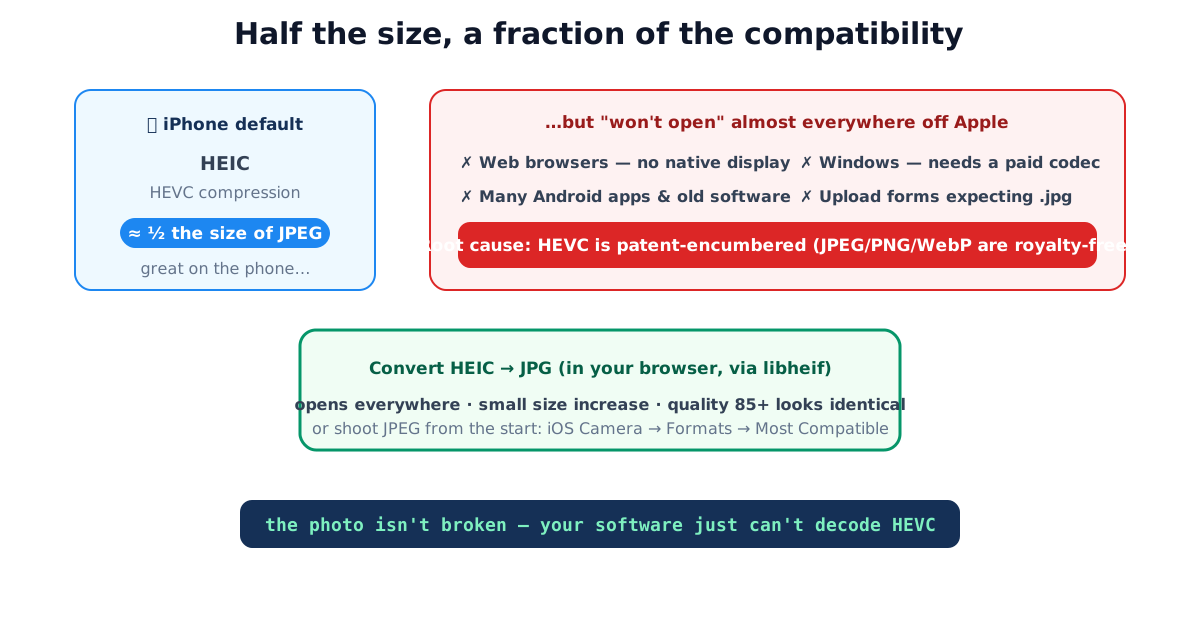
HEIC stands for High Efficiency Image Container. It’s a file wrapper (part of the HEIF standard) holding images compressed with HEVC, also called H.265, the same codec used for 4K video. HEVC is genuinely better at compression than JPEG’s decades-old algorithm: an iPhone photo in HEIC is typically about half the file size of the same photo saved as JPEG, at comparable visual quality. On a phone holding thousands of photos, that space saving is substantial, which is why Apple made HEIC the default capture format in iOS 11 (2017).
The catch is everything outside Apple’s walls.
Why the photo “won’t open”
The compression that makes HEIC efficient is also what makes it unreadable in so many places:
| Where | HEIC support |
|---|---|
| Web browsers | None display it natively, an <img src> pointing at a .heic file shows nothing |
| Windows | Needs the HEVC codec extension (historically a paid add-on) to preview or open |
| Android | Modern versions handle it; many apps and older devices don’t |
| Older software | Photo editors and uploaders from before ~2018 reject it |
| Upload forms | Many reject .heic, expecting .jpg/.png |
The root cause is patents. HEVC is covered by a thicket of licensing claims, and building that licensing into every web browser and operating system has been a legal and financial obstacle. By contrast, the formats that “just work”, JPEG, PNG, and increasingly WebP, are royalty-free, so platforms can support them universally. HEIC’s technical merit ran straight into a licensing wall.
HEIC vs JPEG vs PNG vs WebP
It helps to see where HEIC sits among the formats you actually have to choose between. The two that matter for compatibility are JPEG (universal, lossy) and PNG (universal, lossless); WebP is the modern royalty-free middle ground that browsers now support everywhere.
| Format | Compression | File size | Opens everywhere? | Best for |
|---|---|---|---|---|
| HEIC | HEVC, lossy | Smallest (~half of JPEG) | No, Apple-centric | Storing photos on an iPhone |
| JPEG | DCT, lossy | Moderate | Yes | Sharing, uploading, printing photos |
| PNG | Deflate, lossless | Largest for photos | Yes | Graphics, screenshots, exact copies |
| WebP | VP8/VP8L, both | Small | Yes (modern browsers) | Web images where you control the page |
The pattern is that HEIC trades compatibility for size, and JPEG trades size for compatibility. For a file that has to leave the Apple ecosystem, that trade almost always favours JPEG, the extra megabyte is cheaper than a photo nobody can open.
A worked example
A single 12-megapixel iPhone photo captured as HEIC is typically around 1.5 to 2 MB. Saved as JPEG at high quality, the same shot is often roughly 3 to 4 MB, the doubling Apple’s storage saving depends on. Now scale that up: a library of 4,000 photos is on the order of 7 GB in HEIC versus around 14 GB in JPEG. On a 128 GB phone that difference is the whole reason HEIC exists. But for the handful of photos you email or upload in a given week, converting a few files to JPEG costs a trivial amount of space and removes the “won’t open” problem entirely.
Converting HEIC, the private way
Search “HEIC to JPG” and most results upload your photo to a server, convert it there, and hand back a link. For a vacation snapshot that might be fine; for anything personal it’s the wrong trade, photos can carry GPS coordinates and depict people and places you’d rather not hand to an unknown service (see the photo metadata guide for what’s hidden in the file).
It doesn’t need a server. The open-source libheif decoder, the reference HEIF/HEVC decoder, compiles to WebAssembly and runs inside your browser. The HEIC to JPG converter uses exactly that: the decoder (~1 MB) downloads once on first use, decodes your photo locally, and re-encodes it as JPG or PNG. Nothing is transmitted; it works with your internet switched off after the first load.
Choosing the output:
- JPG, universal, small, right for almost everything. Quality 85+ is visually identical to the original.
- PNG, a lossless re-encode of the decoded image; larger files, worth it only if you need pixel-exactness for editing.
If the resulting JPG is still large, run it through the image compressor, also local, to size it for email or the web. If you need a format other than JPG or PNG, the image converter handles the rest, again without an upload.
Does converting cost quality?
Only marginally, and usually invisibly. HEIC and JPEG are both lossy formats, so decoding the HEIC and re-encoding it as JPEG runs the pixels through a second lossy pass, a small amount of detail is discarded. In practice, at JPEG quality 85 or higher that loss is not visually detectable on a normal photo, and it never compounds unless you repeatedly re-save the same file. If you genuinely need a pixel-exact working copy, for editing or archiving, choose PNG, which re-encodes the already-decoded image losslessly at the cost of a much larger file. For simply viewing, sharing, or printing, JPEG at high quality is the correct default.
Stop the problem at the source
If HEIC keeps causing you friction, switch your iPhone to shoot JPEG directly:
Settings → Camera → Formats → Most Compatible
The camera then captures JPEG, which opens everywhere with no conversion step. The cost is roughly double the storage per photo, the exact saving HEIC was giving you. If your phone has ample space and you frequently move photos to Windows or share them widely, “Most Compatible” removes the headache permanently. If you value the space, keep HEIC and convert the occasional file that needs it.
A middle path worth knowing: sharing photos through Mail or AirDrop often converts to JPEG automatically, and exporting from the Photos app lets you pick JPEG. The conversion tool is for the files that reach you already as HEIC, email attachments, cloud downloads, or files sent “as document.”
Common HEIC mistakes
- Assuming the photo is corrupted. It isn’t; it’s a valid HEIC your software just can’t decode. Convert, don’t re-take.
- Uploading personal photos to convert them, HEIC files can carry GPS and depict private subjects; convert locally.
- Converting to PNG “for quality”. You get a much bigger file storing the same already-lossy pixels; JPG at 85+ is the right default.
- Fighting every file instead of switching capture format, if it’s a recurring problem, flip iOS to Most Compatible and stop converting.
- Forgetting the file still has metadata, a converted JPG can carry over EXIF; strip it with the metadata remover before sharing.
Quick summary
HEIC is the efficient, half-size format iPhones capture by default, but HEVC’s patent licensing keeps it out of browsers, off Windows without extra codecs, and unreliable on Android, so the photo “won’t open.” Convert to JPG for universal compatibility (PNG if you need lossless), and do it locally: the HEIC to JPG converter runs libheif in your browser so a personal photo never travels. To avoid the issue entirely, set iOS Camera → Formats → Most Compatible.
Related tools: image compressor · image converter · image metadata remover. HEIC is built on the HEIF standard using HEVC compression.
Frequently asked questions
Why won't my iPhone photo open on Windows or Android?
Since iOS 11 (2017), iPhones default to HEIC, a container using HEVC compression that stores a photo at roughly half the size of an equivalent JPEG. But Windows needs paid codec extensions to open it, many Android apps and older programs can't read it, and no web browser displays it natively. Converting to JPG makes it open everywhere.
What does HEIC actually stand for?
High Efficiency Image Container, a file wrapper (part of the HEIF standard) that holds images compressed with HEVC (H.265), the same efficient codec used for 4K video. The efficiency is real; the compatibility is the problem.
Does converting HEIC to JPG lose quality?
Marginally. Both are lossy formats, so re-encoding costs a little detail, but at JPEG quality 85 or above the difference isn't visually detectable. If you need a pixel-exact copy, convert to PNG instead (larger file, lossless re-encode of the decoded image).
How do I stop my iPhone from creating HEIC files?
Settings → Camera → Formats → Most Compatible. The camera then captures JPEG directly. The trade-off is roughly double the storage per photo, which is exactly why Apple defaults to HEIC.
Is it safe to convert HEIC photos online?
Only if the conversion happens in your browser. Many HEIC converters upload your photo to their server, and photos are personal, sometimes carrying GPS location. A client-side converter decodes the file on your device with no upload; verify by converting with your internet disconnected.
Why can't browsers just show HEIC?
HEVC, the codec inside HEIC, is patent-encumbered, licensing it into every browser has been a legal and cost obstacle, unlike the royalty-free codecs behind JPEG, PNG and WebP. So browsers decode HEIC only when a library (like libheif) is supplied by the page.
Will I lose my Live Photo when converting?
The still image converts normally, that's the primary frame a HEIC file presents. The short motion clip of a Live Photo is a separate video file that stays on your phone; converting the still doesn't touch it.