
how-to
How to Make a Favicon (Every Size You Need)
By Uttam Regmi · Published 2026-07-28 · Updated 2026-08-23 · 7 min read · Fact-checked, sources cited
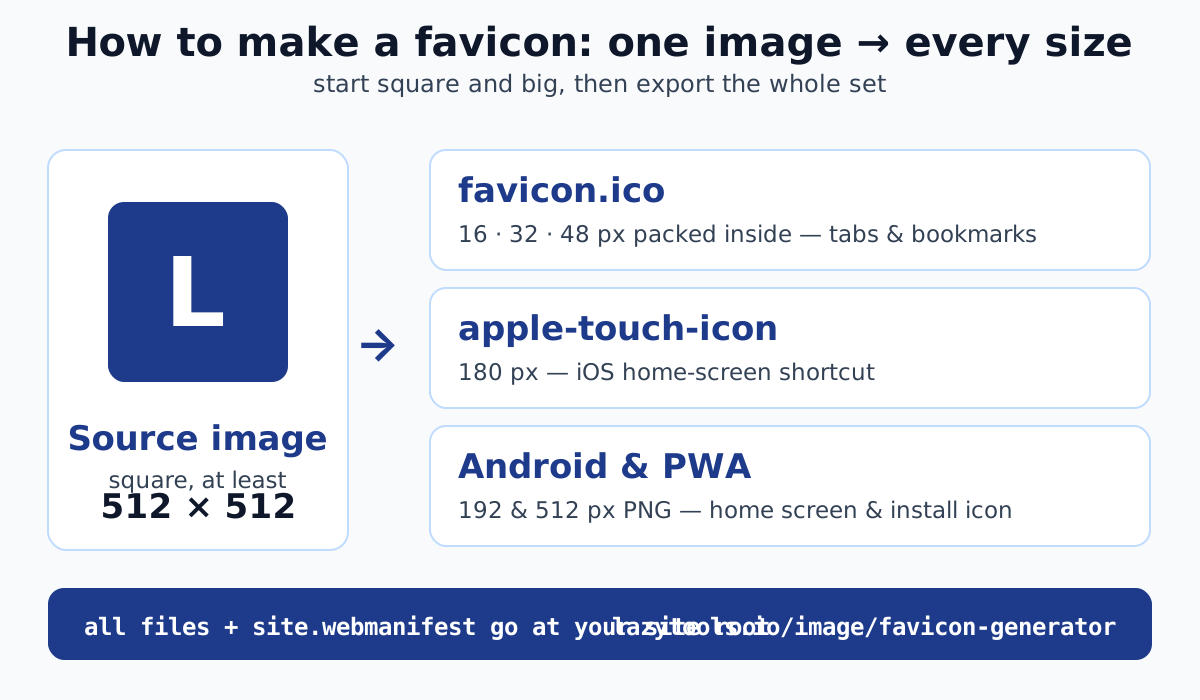
To make a favicon, start from one square image at least 512x512, then export it at every size browsers and devices expect, 16, 32 and 48 px inside a favicon.ico, a 180 px apple-touch-icon, and 192 and 512 px PNGs for Android and PWAs, and add a few link tags to your page’s head. A favicon generator does all of that in one step, so you are not resizing icons by hand or guessing which files to ship.
The favicon sizes you actually need
A favicon is not a single file. It is a small set, each size covering a specific place your icon appears. Ship all of them and your site looks right in browser tabs, bookmarks, iOS home screens, the Android app switcher and installed PWAs.
| Size | Where it is used |
|---|---|
| 16 px | Browser tab and address bar |
| 32 px | Browser tab on high-DPI screens, bookmarks |
| 48 px | Packed into favicon.ico for extra sharpness |
| 180 px | apple-touch-icon, iOS home screen shortcut |
| 192 px | Android home screen and app switcher |
| 512 px | Progressive Web App splash and install icon |
The 16, 32 and 48 px images go inside the single favicon.ico file. The 180 px apple-touch-icon and the 192 and 512 px PNGs are separate files referenced from your manifest and link tags.
What favicon.ico is (and why it stays)
favicon.ico is the multi-resolution icon file browsers request from your site’s root automatically, even if you never add a link tag for it. That default request is exactly why it remains the most compatible fallback: if everything else is missing, a browser still tries /favicon.ico.
The old .ico format was its own bitmap encoding. The modern form is PNG-in-ICO: real PNG images (typically 16, 32 and 48 px) packed inside the .ico container. Every current browser reads it, and it produces smaller, sharper files than the legacy encoding. So favicon.ico has not gone away. It has quietly modernized.
Which favicon format for which job
You will see three image formats in a modern favicon setup, and each earns its place. An SVG favicon scales to any size from one small vector file and can even respond to dark mode, but it needs a raster fallback because not every context renders it. PNG covers the fixed-size icons that phones and app installers expect. ICO remains the universal default. The practical answer is not “pick one”. It is to ship ICO plus PNG, and add SVG on top if you have a clean vector mark.
| Format | Best for | Scales cleanly | Fallback needed |
|---|---|---|---|
| favicon.ico | Default browser request, older clients | Fixed sizes only (16/32/48) | It is the fallback |
| PNG | apple-touch-icon, Android, PWA install | No, one file per size | Covered by the ICO |
| SVG | Crisp tabs at any DPI, dark-mode variants | Yes, one vector file | Yes, pair with ICO/PNG |
If you add an SVG icon, reference it alongside the others and keep sizes="any" on the ICO link so browsers that prefer the vector still fall back gracefully:
<link rel="icon" type="image/svg+xml" href="/favicon.svg">
<link rel="icon" href="/favicon.ico" sizes="any">
The HTML link tags to add
The link tags tell browsers and devices which icon to use where. Add these inside the <head> of your pages:
<link rel="icon" href="/favicon.ico" sizes="any">
<link rel="icon" type="image/png" sizes="32x32" href="/favicon-32x32.png">
<link rel="icon" type="image/png" sizes="16x16" href="/favicon-16x16.png">
<link rel="apple-touch-icon" sizes="180x180" href="/apple-touch-icon.png">
<link rel="manifest" href="/site.webmanifest">
Put favicon.ico, the PNGs and site.webmanifest at your site root, the top-level folder served at /. The manifest is where the 192 and 512 px PNGs are declared for Android and PWA installs, which is why it earns its own link.
A minimal site.webmanifest that wires up the two large PNGs looks like this:
{
  "icons": [
    { "src": "/android-chrome-192x192.png", "sizes": "192x192", "type": "image/png" },
    { "src": "/android-chrome-512x512.png", "sizes": "512x512", "type": "image/png" }
  ]
}
A worked example, start to finish
Say you have a logo that is a bold letter “L” in a solid circle. Here is the whole path from that one file to a working favicon:
- Square and enlarge the source. Export or resize the logo to 512x512 with the mark centred. If it started as a vector, rasterize the SVG to a 512 px PNG first so the downscaler has real pixels.
- Generate the set. Drop that PNG into the favicon generator. It center-crops to square, renders 16, 32, 48, 180, 192 and 512 px, packs the small three into favicon.ico, and writes site.webmanifest plus the link snippet.
- Unpack at the root. Download the zip and copy favicon.ico, the PNGs and site.webmanifest into the folder served at
/. - Paste the tags. Add the five
<link>lines into your<head>(the generator hands you the exact snippet). - Verify. Load your site, then request
/favicon.icodirectly in the address bar to confirm the file is where the browser expects it.
That is the entire job. The only decision that needs a human is step one, everything after it is mechanical, which is exactly what a generator is for.
Design so it reads at 16 px
A favicon spends most of its life at 16 or 32 pixels wide. At that scale, fine detail is not just lost. It turns to mush. Design accordingly:
- One idea per icon. A single letter, a simple monogram or one bold shape survives the shrink. A full wordmark or a detailed illustration does not.
- High contrast. The mark needs to separate from both light and dark browser chrome. Thin outlines vanish; solid fills hold.
- Generous padding. Leave a little breathing room inside the square so the mark is not clipped by the tab’s rounded corners.
- Test at true size. Zoom your 16 px export to 100% and judge it there, not scaled up. If you cannot tell what it is, neither can a visitor.
A common trick for busy logos: make a simplified favicon, just the emblem, not the full lockup, and keep the detailed version for larger placements.
Test that it actually works
Browsers cache favicons aggressively, which is why a “broken” favicon is often just a stale one. To confirm a real result:
- Hard-refresh or open the page in a private window so the old icon is not served from cache.
- Request
/favicon.icodirectly to prove the file exists at the root. - Check a phone. Add the site to an iOS home screen to confirm the 180 px apple-touch-icon, and install it as a PWA on Android to confirm the 192 and 512 px PNGs and manifest.
Common mistakes
Most broken favicons come from the same handful of slips. Avoid these and you cover every device:
- Only providing a 16 px icon. It looks blurry on high-DPI screens and gives phones and PWAs nothing usable. Ship the full set.
- Forgetting the apple-touch-icon. Without the 180 px file, an iOS home-screen shortcut falls back to a plain screenshot or a generic icon.
- Wrong file location. If favicon.ico is buried in a subfolder instead of the root, the browser’s automatic request misses it.
- A non-square source image. Off-square art gets cropped or squished. Start square so every size is a clean scale-down.
- No favicon.ico fallback. Relying only on PNG link tags leaves older requests and default lookups with nothing to grab.
Generate your favicon privately
The fastest way to get every file right is to let a tool build them from one image. The LazyTools favicon generator does exactly that, entirely in your browser: it center-crops your image to square, renders each size on a canvas, builds the multi-resolution favicon.ico, writes site.webmanifest plus the <link> snippet, and zips it all up, with no upload. Your logo never leaves your device.
Two quick prep tips. If your logo is an SVG, rasterize it to a large PNG first so the generator has crisp pixels to downscale. If your source is a big photo or an odd shape, resize and square it up before you start. Then drop it in, download the zip, unpack it to your site root, and paste the link tags, your favicon is done.
This is general web-development how-to information. The favicon generator renders and packages all files in your browser using the canvas API; your image is never uploaded. Recommended sizes and the standard link tags follow current browser and platform conventions.
Frequently asked questions
How do I make a favicon?
Start from one square image (at least 512x512), then export it at every size a browser or device expects: 16, 32 and 48 px packed into a favicon.ico, a 180 px apple-touch-icon, and 192 and 512 px PNGs for Android and PWAs. A generator does all of this at once and gives you the files plus the HTML link tags to paste into your page's head.
What sizes does a favicon need?
The core set is 16, 32 and 48 px inside favicon.ico for browser tabs and bookmarks, a 180 px apple-touch-icon for iOS home screens, and 192 and 512 px PNGs for Android and Progressive Web Apps. Those cover browsers, phones and installable apps without gaps.
What is favicon.ico and do I still need it?
favicon.ico is the multi-resolution icon file browsers request from your site's root by default, even with no link tag. It is still the most compatible fallback. The modern form is PNG-in-ICO, real PNG images inside the .ico container, which every current browser reads. Yes, you still want one.
Where do I put the favicon files and link tags?
Place favicon.ico, the PNGs and site.webmanifest at your site root (the top-level folder), then add the link tags inside the head of your HTML. Keeping the files at the root is what lets browsers find favicon.ico automatically.
What image should I start from?
Start from a square image at least 512x512 with a simple, high-contrast mark. Fine detail disappears at 16 px, so a bold logo or single letter reads far better than a busy illustration. If your logo is an SVG, rasterize it to a large PNG first.
Is my logo uploaded when I use the generator?
No. The LazyTools favicon generator runs entirely in your browser. It crops, renders every size, builds the favicon.ico, writes site.webmanifest and zips everything locally. Your image never leaves your device and is never sent to a server.