
how-to
How to Password-Protect a PDF (or Remove a Password) Without Uploading It
By Uttam Regmi · Published 2026-07-06 · Updated 2026-07-06 · 6 min read · Fact-checked, sources cited
PDFs are encrypted with AES, so password-protecting one is genuinely secure, but the popular “free online” unlock tools ask you to upload the confidential document and its password together, which is exactly backwards. Both protecting and unlocking a PDF can happen entirely in your browser, so neither the file nor the password ever leaves your device.
How PDF passwords actually work
PDF encryption isn’t a flimsy add-on, it’s part of the format standard (ISO 32000), and modern PDFs use AES, up to AES-256 in PDF 2.0. When a PDF is protected, its content streams are encrypted; a reader must derive the key from your password before it can render a single page.
The subtlety that confuses everyone is that PDFs have two kinds of password:
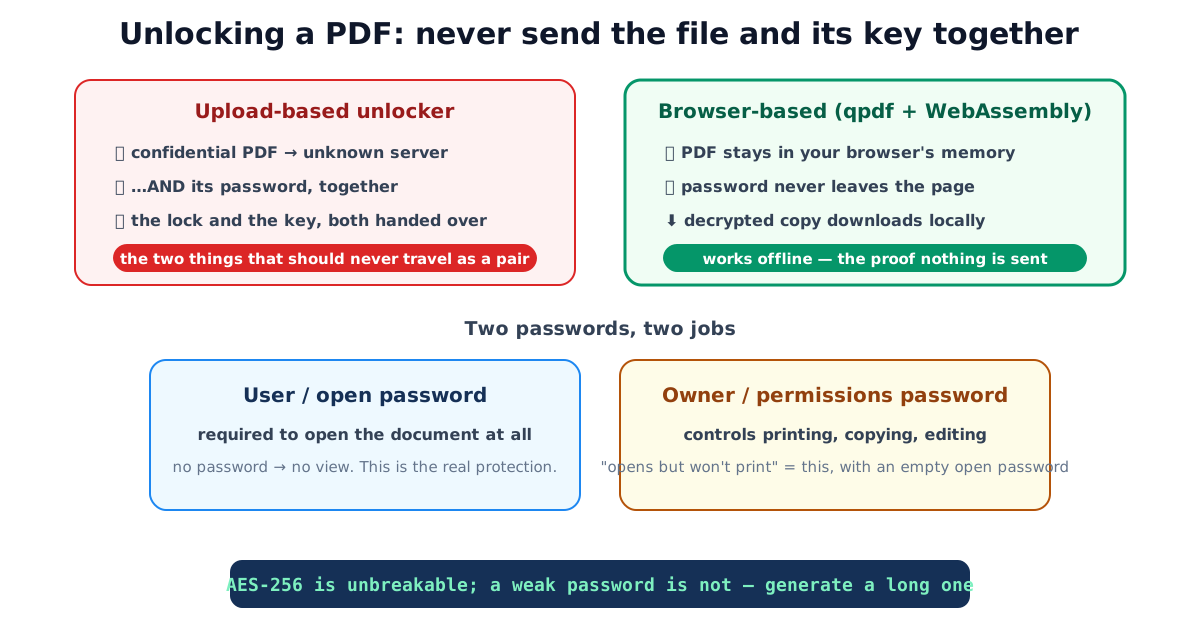
- User password (open password): required to open the document at all. No password, no view.
- Owner password (permissions password): controls what you can do with an open document, print, copy text, edit, annotate, and can remove the protection. A file can have an owner password with an empty user password, meaning it opens freely but restricts actions.
That second case explains the common “it opens but I can’t print” situation: it’s encrypted with an owner password and no open password.
PDF encryption has gotten stronger over time
Not every “encrypted” PDF is equally safe. The PDF standard has carried several encryption schemes over the decades, and older ones are weak by modern standards. When you protect a file today you want AES; when you receive an old protected file, it may be using something far more brittle.
| Scheme | Introduced with | Key strength | Verdict today |
|---|---|---|---|
| RC4 40-bit | Acrobat 3 (PDF 1.1) | 40-bit | Broken, brute-forceable in seconds |
| RC4 128-bit | Acrobat 5 (PDF 1.4) | 128-bit | Weak cipher; avoid |
| AES-128 | Acrobat 7 (PDF 1.6) | 128-bit | Strong |
| AES-256 (early) | Acrobat 9 | 256-bit | Strong cipher, but a flawed key-derivation step |
| AES-256 (revised) | Acrobat X / PDF 2.0 (ISO 32000-2) | 256-bit | Recommended |
The takeaway: the algorithm matters, and modern tools default to AES-256 with the revised, hardened key derivation. But even the best algorithm only protects you as far as your password reaches, which is where most real-world failures happen.
Why the password, not the cipher, is what breaks
AES-256 is not the part that fails. An attacker who wants into an AES-256 PDF does not attack the cipher. They guess passwords offline, as fast as their hardware allows, until one works. That makes password length and randomness the entire game.
A rough sense of scale: each additional random character multiplies the number of guesses needed. A password drawn from lowercase letters, uppercase, digits and symbols has roughly 95 possible characters per position, so length compounds fast.
| Password | Character set | Rough keyspace |
|---|---|---|
1234 | digits | ~10⁴ |
Summer2026! | dictionary word + predictable suffix | effectively tiny, guessed from wordlists |
| 8 random mixed characters | ~95 per char | ~95⁸ |
| 16 random mixed characters | ~95 per char | ~95¹⁶ |
Summer2026! looks complex but is not: password-guessing tools try dictionary words with common
substitutions and year suffixes first, so it falls almost as quickly as 1234. Randomness, not
visual complexity, is what resists guessing. A 16-character random password generated by a machine is
in a different universe from anything a human invents by hand, which is exactly why the
password generator exists.
Why uploading to unlock is the wrong move
Think about what an upload-based unlock tool asks for: the confidential PDF and the password that protects it, submitted together to a server you know nothing about. Those are precisely the two things that should never travel as a pair. The documents people password-protect, contracts, statements, medical records, IDs, are confidential by definition, and handing over the key alongside the lock defeats the entire purpose of having locked it.
Protecting a PDF is just as sensitive: the file you’re about to encrypt is, by the fact that you’re encrypting it, something you consider private.
There’s no technical reason for the upload. qpdf, the standard open-source PDF transformation engine, compiles to WebAssembly and runs in the browser. The protect and unlock tools use exactly that: the file is decrypted or encrypted in your browser’s memory, and you can prove nothing is transmitted by using them with your connection off.
Protecting a PDF, step by step
- Open the password-protect tool and choose the PDF.
- Set a user password. This is what opens the document. Make it strong: AES-256 is
irrelevant if the password is
1234. Generate a long one in the password generator and store it in a password manager. - Optionally set a separate owner password to control permissions; leave it blank to reuse the user password.
- Download the encrypted copy. It opens in Acrobat, browsers, Preview and every standards-compliant reader, password protection is part of the PDF standard, not a proprietary wrapper.
The one irreversible risk: there is no recovery. AES-256 has no back door, and the tool keeps no copy of anything. Save the password the moment you set it.
Unlocking a PDF you can open
- Open the unlock tool and choose the protected PDF.
- Enter the password it opens with. (For the “opens freely but won’t print” case, leave it blank, that clears owner-password restrictions.)
- Download the unlocked copy, same content, no encryption layer.
Two honest limits. First, this only removes a password you know. It cannot crack an unknown one, because AES makes that infeasible, which is the whole point of the protection. Second, unlock only documents you have the right to open: your own files, or ones whose password was legitimately shared with you.
When to use file encryption instead
PDF passwords are the right tool when you want a document any reader can open with a prompt. But if you want to encrypt a non-PDF file, or wrap anything in a generic strong-encryption container, use the file encryption tool: it applies AES-256-GCM to any file with a password, also entirely in your browser. The security tools guide covers the broader privacy toolkit.
Common PDF password mistakes
- Uploading the file and password to unlock it, the single riskiest thing you can do with a confidential document; do it locally.
- Trusting AES-256 with a weak password, the cipher is unbreakable;
Summer2026!is not. Generate the password. - Confusing owner and user passwords, “won’t print” is an owner restriction; “won’t open” is a user password. They’re set and removed differently.
- Expecting to recover a forgotten password. You can’t; store it when you create it.
- Assuming permission restrictions are ironclad, no-print/no-copy flags rely on the reader honoring them; the open password is the real protection.
Quick summary
PDF passwords use genuine AES encryption, with two roles, the user password opens the document, the owner password controls printing and copying. That makes protection real, but it also makes the common upload-based unlockers dangerous: they collect the confidential file and its password together. Do both operations locally instead, protect and unlock run qpdf in your browser, pair encryption with a generated password, and remember that a password you lose is gone for good.
Related tools: file encryption · password generator · merge PDF. Encryption is handled by the open-source qpdf engine compiled to WebAssembly.
Frequently asked questions
Is it safe to use online PDF password tools?
Upload-based ones are a bad trade: to unlock a PDF they ask for the document AND its password, the two things that should never travel together to an unknown server. Adding a password is just as sensitive, since the file itself is confidential. Browser-based tools remove the risk: the PDF and password stay in your browser's memory, verifiable by working offline.
What's the difference between a user password and an owner password?
The user (open) password is required to open the document at all. The owner (permissions) password separately controls what you can do once it's open, printing, copying, editing, and can remove the protection. If you set only one, it usually serves both roles.
How strong is PDF password encryption?
Modern PDFs use AES, up to AES-256 in the PDF 2.0 standard, cryptographically strong. The practical weak point is never the cipher but the password: a short, guessable one falls to offline guessing no matter how strong the algorithm. Use a long, generated password.
Can I remove a password I don't know?
No, and no legitimate tool can. Removing encryption requires the correct password; without it, AES-protected PDFs are computationally infeasible to open. Password 'recovery' tools simply guess many passwords, which only works on weak ones.
My PDF opens without a password but won't let me print, why?
It has an owner password with restrictions but an empty user password: it opens freely yet blocks printing, copying or editing. An unlock tool clears those restrictions when you leave the password field blank.
Does adding or removing a password change the document?
No, encryption and decryption are structural operations wrapped around the existing content. Text stays selectable, images keep their quality. Only the encryption layer is added or removed; the visible pages are unchanged.
Is password-protecting a PDF the same as encrypting any file?
Similar idea, different scope. PDF protection is built into the PDF standard so any reader can prompt for the password. To encrypt a non-PDF file, or a PDF you want wrapped in a generic encrypted container, use a file encryption tool instead.