
how-to
How to Read a QR Code From an Image (No App)
By Uttam Regmi · Published 2026-07-28 · Updated 2026-07-28 · 6 min read · Fact-checked, sources cited
To read a QR code from an image, open a browser-based QR reader, then upload or paste the picture. It decodes the code locally and shows you the text or link inside. No camera, no phone, no app. If you already have the code as a saved image, a screenshot, or something on your screen, that’s all a reader needs. This is exactly how to read a QR code from an image on a desktop, where there’s no camera pointed at anything.
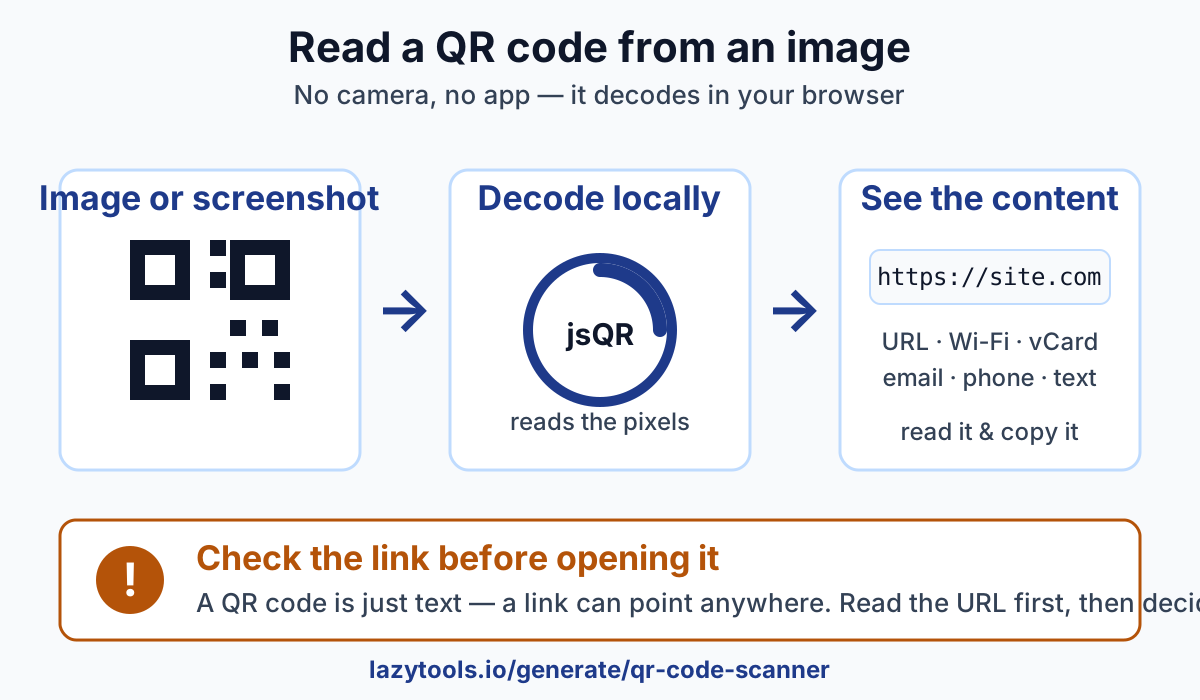
How to read a QR code from an image
The whole process is three steps and takes a few seconds:
- Upload or paste the image. Open the QR Code Scanner and either choose an image file (a photo, a downloaded graphic, a saved ticket) or paste a screenshot directly from your clipboard. Anything with the code visible in it will do.
- Let it decode. The tool draws your image onto a canvas, reads the pixels, and runs them through the jsQR library to find and decode the QR code. No camera is involved and nothing is sent anywhere.
- Read or copy the result. The encoded content appears as plain text, a link, a Wi-Fi login, a contact card, whatever the code holds. You can read it, check it, and copy it.
Because it’s all file-based, it works on a laptop or desktop with no camera at all, and it’s just as quick for a screenshot as for a saved image. That covers the situations a phone camera can’t reach: a QR code emailed to you as an attachment, one embedded in a PDF you’ve screenshotted, a code sitting inside another web page, or one you’ve been sent in a chat. In every case the code is already an image on your device, there’s nothing to point a camera at, so a file-based reader is the natural fit.
What a QR code can contain
A QR code doesn’t “do” anything on its own. It simply stores text. What makes it useful is that apps agree on conventions for what certain text means. Common types:
| Type | What’s encoded | What it’s used for |
|---|---|---|
| URL | A web address, e.g. https://example.com | Menus, posters, product pages, payments |
| Wi-Fi | Network name, password, security type | Joining a network without typing the password |
| vCard | Name, phone, email, company | Sharing contact details from a business card |
| Email / phone | A mailto: or tel: link | Starting an email or a call in one tap |
| Plain text | Any short text | Notes, codes, serial numbers, messages |
When you decode a QR with a reader, you see this raw content directly, which is the whole point of reading before acting. (Going the other way, you can make your own QR code from any of these, or spin up a Wi-Fi QR code so guests can join without typing a password.)
Is it safe to open a QR link?
Here’s the security point most people miss: a QR code is just text, so a link inside one can point anywhere, including a malicious site. There’s nothing about a QR code that guarantees where it goes. Scammers exploit this by pasting fake QR stickers over real ones on parking meters, restaurant tables, and posters, a scam the FBI has warned about (“quishing”).
The safe habit is to read the URL before you open it. A reader that shows you the decoded address first lets you inspect it, check the domain, watch for lookalike spellings and odd link shorteners, and only follow it if you trust it. That’s a real advantage over pointing a phone camera at a code, where the link may open automatically before you’ve seen where it leads. Decode first, look, then decide.
The same caution applies beyond links. A decoded QR might contain Wi-Fi credentials, a contact card, or a phone number rather than a web address, reading the raw content first tells you exactly what a code wants to do before anything acts on it. Seeing the plain text is what turns a QR code from a mystery box into something you can actually judge.
When a QR won’t scan
If the code isn’t detected on the first try, the image is almost always the reason. Common causes and fixes:
- Blurry or out of focus, use a sharper image; a clearer picture decodes far more reliably.
- Too small / low resolution, the code needs enough pixels to resolve its pattern. Use a larger or higher-resolution source.
- Low contrast, QR codes rely on clear dark-on-light squares. Avoid washed-out or heavily filtered images.
- Partial or cut-off code, the whole code, including its three corner squares and the quiet margin around it, must be visible.
- Too much background, if the code is tiny in a busy photo, crop tightly around it so it fills the frame. A tighter crop is the single most effective fix.
In short: a clean, well-lit, fully-visible code decodes; a blurry, cropped, or shrunken one doesn’t.
Common mistakes
- Trusting a link blindly. The biggest one. Always read the decoded URL before opening it, a QR code can lead anywhere.
- Screenshotting too loosely. A code lost in a full-page screenshot may not be detected. Crop close, or paste and let the reader work on a tight image.
- Starting from a low-res source. A code re-saved, resized down, or photographed at a steep angle loses detail. Grab the clearest original you can.
- Assuming you need an app. If the code is already an image, you don’t, a browser reader is faster, involves no install, and doesn’t ask for camera permissions.
- Uploading a private code to a random site. Many online readers send your image to a server. When the code is on a ticket, invoice, or ID, that’s the same privacy problem as any file upload, pick a tool that decodes locally instead.
Read it locally, then decide
Reading a QR code from an image doesn’t need a camera, an app, or an upload. The QR Code Scanner takes any image or pasted screenshot, decodes it in your browser with jsQR, and shows you the exact text or link inside, so you can check a URL before you ever open it. The image never leaves your device and it works offline, which is exactly what you want when the code is sitting on a private ticket, invoice, or document.
Frequently asked questions
How do I read a QR code from an image?
Open a browser-based QR reader, upload or paste the image, and it decodes the code locally and shows the text or URL it holds. No camera, app or account is needed, the image is drawn to a canvas and decoded right on your device.
Can I scan a QR code from a screenshot?
Yes. A screenshot is just an image, so any file-based QR reader can decode it. Paste the screenshot straight from your clipboard or upload the saved file, and the encoded content appears. A tighter crop around the code helps if it isn't detected at first.
Do I need a camera or an app to read a QR code?
No. If you already have the code as an image, a saved file, a screenshot, or something on your screen. You don't need a phone camera or an installed app. A browser reader decodes the picture directly, which is handy on a desktop where there's no camera pointed at the code.
Is it safe to open a link inside a QR code?
A QR code is just text, so the link inside one can point anywhere, including a malicious site. A reader that shows you the URL first lets you inspect it before opening, safer than pointing a phone camera that may open the link automatically. Read the address, and only open it if you trust it.
Why isn't my QR code being detected?
Usually the image is blurry, too small, low-contrast, or the code is partly cut off. Use a clearer, higher-resolution picture and crop tightly around the code so it fills the frame. A clean, well-lit image with the full code visible decodes far more reliably.
Is my image uploaded when I read the QR code?
With LazyTools, no. The QR Code Scanner decodes entirely in your browser using the jsQR library, the image never leaves your device and it works offline. That matters when the code is on a private document, ticket or invoice.