
how-to
How to Convert SRT to VTT for HTML5 Video
By Uttam Regmi · Published 2026-07-28 · Updated 2026-07-28 · 7 min read · Fact-checked, sources cited
To convert an SRT subtitle file to VTT, you make three small edits: add a WEBVTT header line at the top, change the comma before the milliseconds in each timestamp to a dot, and (optionally) delete the numeric cue indices. That is the whole of how to convert SRT to VTT, the timings and the caption text never change. You need this because the HTML5 <track> element that puts subtitles on web video only accepts WebVTT, and SRT is the format almost everything else hands you.
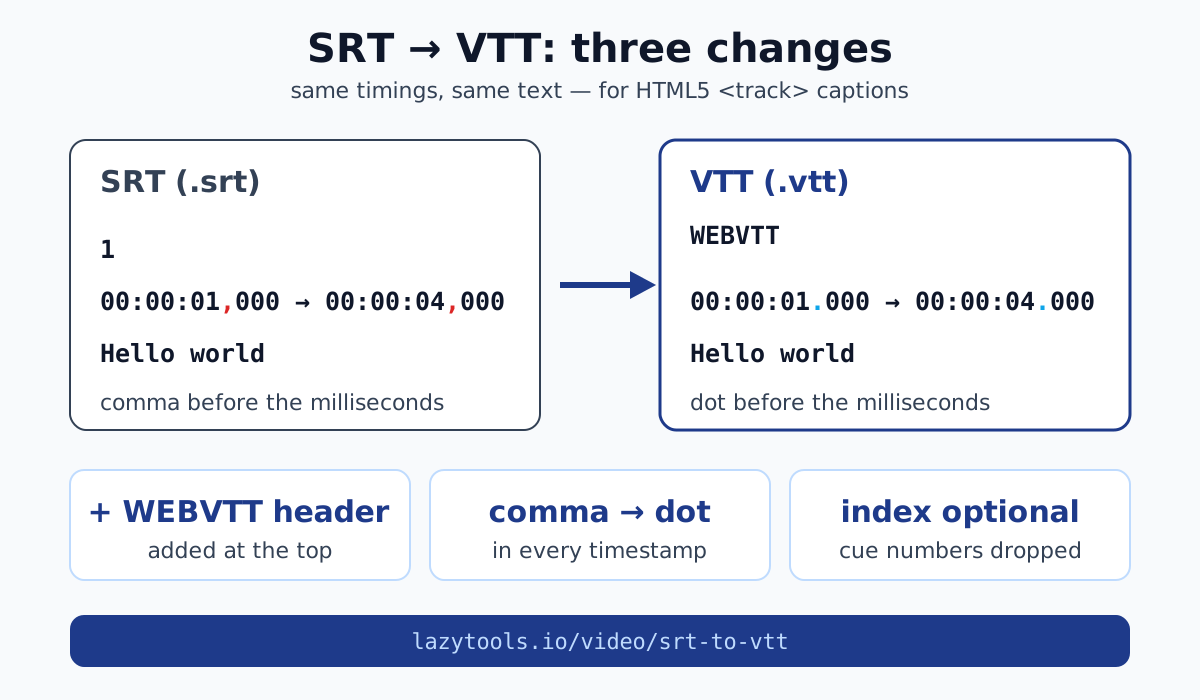
SRT vs VTT: the three differences
SubRip (.srt) and WebVTT (.vtt) are close cousins. Both are plain-text files listing cues, and each cue is just a time range plus a line or two of text. The differences that matter for conversion come down to exactly three things:
| Aspect | SRT (.srt) | VTT (.vtt) |
|---|---|---|
| Header line | none, file starts with the first cue | must start with WEBVTT |
| Millisecond separator | comma: 00:00:01,000 | dot: 00:00:01.000 |
| Cue indices | required numeric index before each cue | optional |
WebVTT can do more on top of this. It allows cue positioning and styling, plus NOTE comments and STYLE blocks that SRT has no equivalent for. But for a straight conversion you only need to handle the three rows above. Get those right and the file is valid VTT.
It helps to remember why the formats diverged. SRT came out of desktop video players, where a numbered list of cues was all anyone needed. WebVTT was designed for the web, so it borrowed SRT’s simple cue structure but added a header to identify the format and a few features browsers could hang styling off. The dot-versus-comma difference is the most easily overlooked, because it is a single character buried in every timestamp, which is exactly why a manual find-and-replace so often misses one.
Convert SRT to VTT, step by step
Take a single SRT cue. Here is what a typical one looks like:
1
00:00:01,000 --> 00:00:04,000
Hello world
Now apply the three changes. Add the WEBVTT header (followed by a blank line), swap the comma in the timestamp for a dot, and drop the 1 index. The result is valid WebVTT:
WEBVTT

00:00:01.000 --> 00:00:04.000
Hello world
That is it. The text Hello world is untouched, and the cue still starts at one second and ends at four. For a whole file you repeat the timestamp fix on every line that contains -->, which is tedious by hand and easy to get wrong, one missed comma and the browser rejects the cue.
A real file has many cues stacked one after another, separated by blank lines. The same three edits apply to the whole file, the header goes on once at the very top, and the comma-to-dot fix repeats on every timestamp line. Here is a two-cue SRT and the VTT it becomes:
1
00:00:01,000 --> 00:00:04,000
Hello world

2
00:00:05,500 --> 00:00:08,200
Second line of dialogue
WEBVTT
00:00:01.000 --> 00:00:04.000
Hello world
00:00:05.500 --> 00:00:08.200
Second line of dialogueNotice that only the header and the two timestamp lines changed. The blank line between cues, the wording and the ordering are all identical. That is the whole job, but with dozens or hundreds of cues, a hand edit will eventually leave one comma behind, and one bad timestamp is enough for a browser to drop that cue silently.
The SRT to VTT converter does the entire file in one step, in your browser, so nothing is uploaded. If you ever need to go the other direction, say a desktop player only wants SubRip, the VTT to SRT converter reverses the process.
Encoding and formatting details that bite
Two things trip people up beyond the three obvious edits, and both come down to how the text itself is stored.
The first is character encoding. WebVTT files must be encoded as UTF-8, that is fixed by the format, not optional. SRT has no official specification, so an SRT file exported by an older desktop tool can arrive in a legacy encoding like Windows-1252. If accented characters (é, ñ, ü) or non-Latin scripts show up as mojibake after conversion, the source SRT was almost certainly not UTF-8. Re-saving the SRT as UTF-8 before converting fixes it. A WebVTT file may optionally start with a byte-order mark, but it is not required.
The second is inline text styling. Both formats let you mark up cue text, but they do not use the same tags. Basic emphasis carries over cleanly, while a few SRT-only tags have no WebVTT equivalent and are simply ignored by the browser:
| Inline tag | In SRT | In WebVTT |
|---|---|---|
<b> bold, <i> italic, <u> underline | supported | supported |
<font color="..."> | common in SRT | not supported, use a STYLE block instead |
<c.classname> voice/class span | not available | supported |
<v Speaker> voice tag | not available | supported |
For the vast majority of subtitle files, plain text with the odd italic, none of this matters and the conversion is lossless. It only surfaces if your SRT leans on coloured <font> tags, which WebVTT expects you to handle through a STYLE block near the top of the file instead.
Add the subtitles to your HTML5 video
Once you have a .vtt file, you attach it to a video with a <track> element nested inside <video>:
<video controls>
  <source src="movie.mp4" type="video/mp4" />
  <track kind="subtitles" src="subs.vtt" srclang="en" label="English" />
</video>
The kind tells the browser what the file is. It accepts several values, and picking the right one changes how the browser treats the track:
kind value | What it is for |
|---|---|
subtitles | Translated dialogue for viewers who do not understand the language |
captions | Same-language text including sound effects and speaker cues, for deaf and hard-of-hearing viewers |
descriptions | Text descriptions of the video for audio synthesis (accessibility) |
chapters | Chapter titles used for navigating the timeline |
metadata | Cues used by scripts, not shown to the viewer |
For ordinary captions and subtitles you will only ever use the first two. srclang is the language code (for example en, es, fr), and label is the human-readable name shown in the player’s captions menu. Point src at your converted .vtt file and the subtitles appear in the built-in controls.
You can add more than one <track>, one per language, and mark a preferred one with the default attribute so it shows automatically. Each still points at its own .vtt file with its own srclang and label, which is why getting the conversion and the language codes right for every file matters once you go beyond a single caption track.
Common mistakes
A few errors account for almost every “my captions won’t show” problem:
- Leaving the comma millisecond separator.
00:00:01,000is still SRT syntax; WebVTT needs the dot. A single stray comma can invalidate a cue. - Missing the
WEBVTTheader. Without that first line the file is not recognised as WebVTT at all, no matter how correct the cues are. - Wrong
<track>attributes. Forgettingkind, or givingsrclanga bad or missing language code, keeps the track out of the captions menu. - Serving
.vttwith the wrong MIME type. The file should be served astext/vtt. If your server sends it astext/plainorapplication/octet-stream, some browsers refuse to load it, a server config fix, not a file fix.
If your subtitles load but appear at the wrong moments, that is a timing problem, not a format one, the subtitle shifter nudges every cue earlier or later to resync them.
Convert it locally
Converting SRT to VTT is a plain-text transformation: header, separator, indices. Because there is no media to re-encode, there is no reason for the file to leave your machine. The SRT to VTT converter runs entirely in your browser and works offline, useful when the subtitles belong to an unreleased cut or a client project you would rather not upload anywhere. Fix the three things, drop the .vtt into your <track>, and your HTML5 video has captions.
This is general how-to information about the SubRip (SRT) and WebVTT (.vtt) subtitle formats. The LazyTools SRT to VTT converter processes text entirely in your browser; the file is never uploaded. WebVTT is the format required by the HTML5
Frequently asked questions
How do I convert SRT to VTT?
Add a WEBVTT header line to the top of the file, change the comma before the milliseconds in every timestamp to a dot (00:00:01,000 becomes 00:00:01.000), and optionally remove the numeric cue indices. The cue text and timings stay exactly the same. A browser-based converter does all three edits for you in one click.
Why do I need WebVTT instead of SRT?
The HTML5 <track> element that adds captions and subtitles to web video requires WebVTT, not SRT. SRT is the most common subtitle format, so files almost always need converting before they will display on a web page.
What's the difference between SRT and VTT?
Both are plain-text lists of timed cues, but they differ in three ways: VTT starts with a WEBVTT header line, VTT uses a dot before the milliseconds while SRT uses a comma, and SRT requires numeric cue indices while VTT makes them optional. VTT also supports cue positioning, styling and NOTE/STYLE blocks that SRT has no equivalent for.
Does converting SRT to VTT change the timings?
No. Converting preserves the cue timings and the caption text exactly. Only the header, the millisecond separator and the cue indices change, every subtitle still appears at the same moment for the same duration.
How do I add the .vtt file to an HTML5 video?
Place a <track> element inside your <video> element and point its src at the .vtt file, for example <track kind="subtitles" src="subs.vtt" srclang="en" label="English">. Set kind to subtitles or captions and give srclang the correct language code so the browser shows it in the captions menu.
Is my subtitle file uploaded when I convert it?
Not with LazyTools. The SRT to VTT converter runs entirely in your browser as pure text processing, so the file never leaves your device and it works offline. That matters for unreleased scripts or client work you would rather not send to a stranger's server.