
explainer
How to Extract Text from a PDF (Without Uploading It)
By Uttam Regmi · Published 2026-07-27 · Updated 2026-07-27 · 4 min read · Fact-checked, sources cited
To extract text from a PDF, open it in a tool that reads the file’s text layer and copy or export the result, and you can do this entirely in your browser, with the file never uploaded. The catch is that it only works on digital PDFs (ones exported from software), which store their words as real text. A scanned PDF is a set of images with no text layer, so extraction returns nothing until you run optical character recognition (OCR) on it.
Digital vs. scanned: the reason extraction sometimes fails
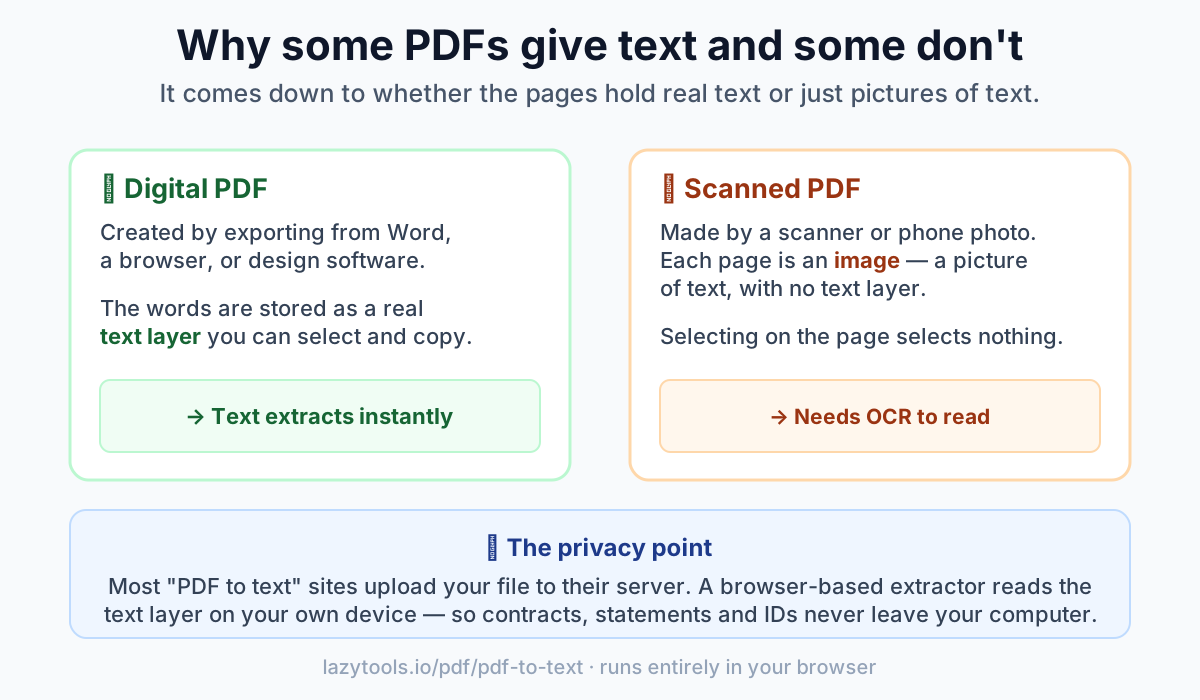
A PDF can hold its text in one of two completely different ways.
A digital PDF, one you exported from Word, Google Docs, a web page’s “print to PDF”, or design software, stores the actual characters as a text layer. The letters are real text sitting on the page, which is why you can select, search and copy them. Extraction just reads that layer out.
A scanned PDF, produced by a scanner or a photo of a document, stores each page as an image. The words you see are pixels, not text. There is no text layer to extract, so a plain extractor returns nothing. Turning those pictures back into text requires OCR (optical character recognition), a separate process that recognises letter shapes in an image.
The one-second test: open the PDF and try to drag-select a sentence. If individual words highlight, it’s digital and the text will extract. If the whole page highlights like a picture (or nothing selects), it’s scanned and needs OCR first.
How to extract the text in your browser
You don’t need to install anything or upload your file:
- Open the PDF to Text extractor.
- Choose your PDF. It’s read on your device, nothing is sent to a server.
- The text appears with line breaks preserved. Copy it or download a .txt file.
Under the hood, this uses the same PDF engine your browser already uses to display PDFs (pdf.js). It walks each page, reads the position of every text fragment, and reconstructs the lines, all in local memory.
Why “in your browser” matters here
PDFs are one of the most sensitive file types people convert: contracts, bank statements, medical letters, tax forms, signed agreements. Most free “PDF to text” websites work by uploading your file to their server to process it, which means a copy of that document now lives on someone else’s computer, potentially logged or cached.
A browser-based extractor never uploads anything. The file is read in your browser’s memory and discarded when you close the tab. For anything confidential, that’s the difference between a private operation and handing your document to a stranger.
| Approach | Where your PDF goes | Good for |
|---|---|---|
| Server-based converter | Uploaded to their servers | Non-sensitive files, OCR of scans |
| Browser-based extractor | Stays on your device | Anything private; digital PDFs |
| Desktop app | Stays on your device | Bulk/offline work (needs install) |
What it won’t do (and the honest limits)
- It won’t OCR scans. Image-only PDFs return no text; you’d need an OCR tool (which, to be genuinely private, would run OCR locally too).
- Complex layouts may reflow oddly. Multi-column pages, tables and text boxes are reconstructed from fragment positions, so reading order isn’t always perfect.
- Formatting is not preserved. You get the words and line breaks, not fonts, colours or exact spacing, it’s plain text by design.
Need the pages as images instead of text? See how to convert a PDF to JPG without uploading it, the same browser-local approach applied to rendering rather than extraction.
Frequently asked questions
Why does my PDF return no text when I try to extract it?
It is almost certainly a scanned PDF, where each page is stored as an image rather than real text. There is no text layer to read, so extraction returns nothing until you run OCR on it first.
How do I tell if a PDF is digital or scanned?
Open it and try to drag-select a sentence. If individual words highlight, it is a digital PDF and the text will extract. If the whole page highlights like a picture or nothing selects, it is scanned and needs OCR.
Is my PDF uploaded to a server when I extract its text?
Not with a browser-based extractor. The tool reads the file on your device using the same pdf.js engine your browser uses to display PDFs, so the file never leaves your computer. Many other 'PDF to text' websites do upload your file.
What is OCR and when do I need it?
OCR (optical character recognition) is a separate process that recognises letter shapes in an image and turns them back into text. You need it for scanned PDFs and photos of documents, which have no text layer to extract directly.
Will extracted text keep the original layout of tables and columns?
Not always. Simple documents extract cleanly, but complex layouts like multi-column pages or tables may not come out in perfect reading order, since extraction reconstructs lines from the position of each text fragment on the page.