
explainer
How to Test Your Webcam and Mic Before a Call (Privately)
By Uttam Regmi · Published 2026-08-06 · Updated 2026-08-23 · 6 min read · Fact-checked, sources cited
The most predictable moment on any video call is the first one: “Can you see my screen? Can you hear me?” A ten-second check beforehand saves it, open a browser test, confirm your camera preview looks right and your mic level meter moves when you speak, and you’re ready. You can do it without installing anything or letting a website record you, using the Webcam & Microphone Test.
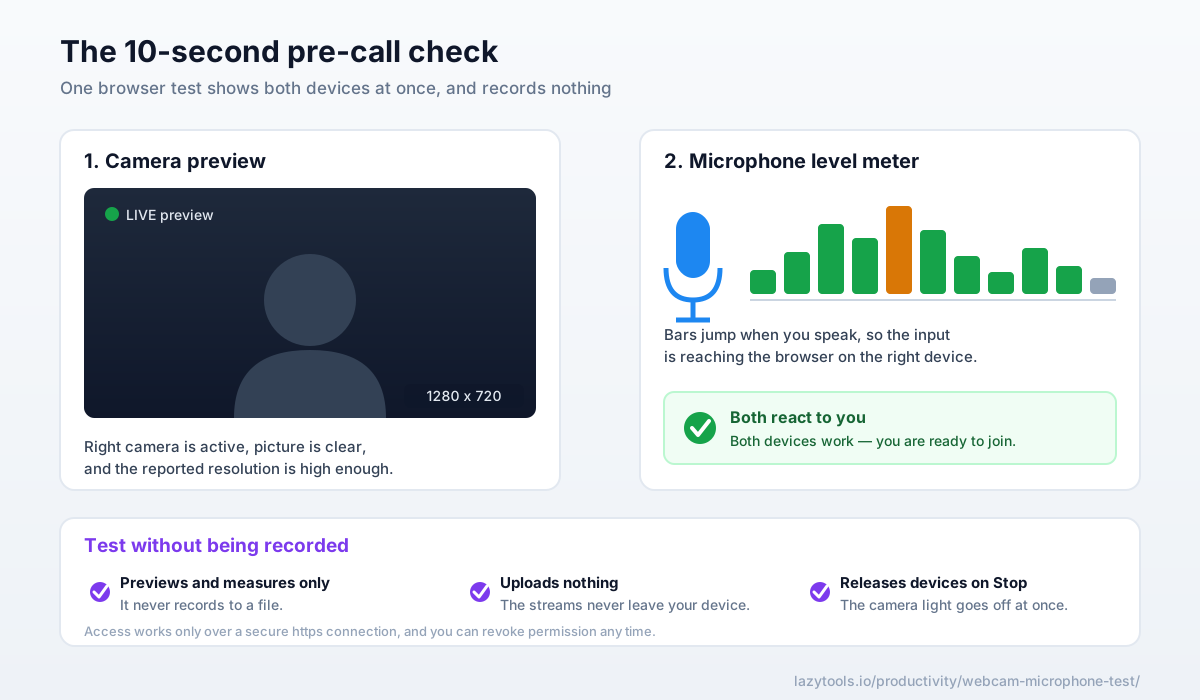
The 10-second pre-call check
Before you join, confirm two things:
- Camera, the right one is active and the picture is clear.
- Microphone, it’s actually picking up your voice, on the right input.
A browser test shows both at once: a live preview of your webcam and a level meter for your mic. If the preview looks right and the meter bars jump when you talk, you’re good to go.
Doing this before you join matters. Once you’re in the meeting, every fix, switching microphones, re-granting permission, unplugging a headset, happens live, in front of everyone, while the clock runs. A neutral test outside the call app lets you sort it out in private, and it separates a hardware problem from an app problem so you’re not toggling the wrong settings under pressure.
Here is a quick checklist that covers the vast majority of “it’s not working” moments:
| Symptom | Most likely cause | Fastest check |
|---|---|---|
| Camera preview is black | Another app is holding the camera, or permission was denied | Close Zoom/Teams/Meet, then reload the test and re-grant permission |
| Preview looks grainy or soft | Low-light room, or a low-resolution stream | Check the reported resolution; add a light facing you |
| Mic meter never moves | Muted device, wrong input selected, or no mic permission | Confirm the meter reacts in the test before blaming the call |
| Meter moves in the test but not in the call | The call app is muted or set to the wrong microphone | Fix the input inside the call app’s audio settings |
| ”Camera in use by another application” | A background app still owns the device | Quit other camera apps; if needed, restart the browser |
How browser device testing works
Modern browsers have a built-in API (getUserMedia) that, with your permission, lets a page use your
camera and microphone:
- The camera stream is shown in a
<video>preview, and the browser also reports the resolution and aspect ratio it’s sending, handy for spotting when you’re stuck at a low resolution. - The microphone stream is fed through the Web Audio API to compute a live input level, drawn as a moving meter, so “is my mic working?” becomes a visible yes/no.
No plugin, no app, just the browser and your permission. Because the same API powers Zoom, Teams, Meet and every other browser-based call, a device that works in the test will work in those apps too, as long as the app is pointed at the same camera and microphone.
A worked example
Say you join a call and a colleague says they can’t hear you. You open the test in a second tab and speak. The meter bars jump, so your microphone, its permission, and its input selection are all fine. That single observation rules out your hardware entirely and points straight at the call app: you’re either muted there or it’s listening to a different device (a common trap when a headset was plugged in after the app launched). You switch the app’s input back to your headset mic, and you’re heard. Total time: under a minute, and none of it spent guessing.
Now flip it. You speak and the meter stays flat. The problem is upstream of any call app: a hardware mute switch on a headset, a wrong default input at the operating-system level, or a denied permission. You fix it once, in the test, and every app you open afterwards inherits the working device.
The “you’re on mute” fix
If people can’t hear you, a mic meter diagnoses it fast:
- Bars don’t move at all → the input isn’t reaching the browser: you’re muted, the wrong device is selected, or permission was denied.
- Bars move here but not in your call app → the problem is the app’s device settings or mute, not your hardware.
That distinction, hardware vs app, is exactly what a neutral test tells you before you start toggling settings mid-call. Most “you’re on mute” moments are the second kind: the hardware is fine, and a mute button or an input selector somewhere in the call app is the real culprit.
What a good camera preview tells you
The picture is only half of “camera works.” A useful test also reports the resolution the camera is sending, which catches two problems the eye alone misses. First, some laptops fall back to a low resolution when the light is poor or when another app has partly claimed the device, the preview looks fine in a small window but goes soft when someone shares your feed full-screen. Second, an external webcam that you think is active may not be the one the browser picked; if the reported resolution doesn’t match your good camera, the browser is using a different (often the built-in) one.
A few seconds spent reading the preview also lets you fix the unglamorous things that matter more than any setting: a light source in front of you rather than behind, the lens wiped clean, and the camera near eye level so you’re not filming your ceiling.
Do it without being recorded
Here’s the privacy catch: a camera/mic test necessarily accesses your devices, so it matters what it does with them. A trustworthy test:
- Only previews and measures. It doesn’t record to a file.
- Uploads nothing, the streams never leave your device.
- Releases the devices as soon as you stop, so the camera light goes off.
Grant permission only over https (this site is), and revoke it any time in your browser’s site settings. Be wary of “webcam recorder” pages that push you to save or share a clip, the moment a page offers to hand you a downloadable file of yourself, it has captured that footage somewhere, and you should know exactly where. A pure test never needs to.
You can verify the claim yourself rather than taking it on faith. After you press Stop, your device’s camera indicator light should switch off immediately; if it stays on, the page is still holding the stream. You can also watch your browser’s network activity, a test that uploads nothing will show no outbound data while the preview runs. Privacy you can check beats privacy you’re promised.
Test both, privately
The Webcam & Microphone Test shows a live camera preview with its resolution and a real-time mic level meter, entirely in your browser, nothing is recorded, saved or uploaded, and access ends the moment you press Stop. Run it before your next call so the first thing you say isn’t “can you hear me?”, part of the same privacy-first approach to everyday tools where your data never leaves your device.
Frequently asked questions
How do I test my webcam and microphone?
Open a webcam-and-mic test page, click Start, and allow the browser's camera/microphone permission. You'll see a live preview of your camera and a level meter that moves when you speak. If the preview shows and the meter reacts, both devices work. The LazyTools Webcam & Microphone Test does this entirely in your browser.
Why can other people not hear me on calls?
Usually one of: you're muted (in the app or on the device), the app is using the wrong microphone, or the browser/app doesn't have mic permission. A mic test shows a live level meter, if the bars don't move when you talk, the input isn't reaching the browser, which points at a muted or wrong device before you blame the call app.
Is a webcam test recording me?
It shouldn't be. A properly built test only displays the camera preview and measures the mic level locally. It doesn't capture to a file or upload anything. This one keeps the streams on your device and releases them the moment you press Stop or leave the page. Be cautious with tests that ask you to 'save' or 'share' a recording.
Why does the test ask for camera/microphone permission?
Browsers block any site from using your camera or mic until you explicitly allow it, and only over a secure (https) connection. Granting permission on a local test just lets the preview and meter run in your browser; you can revoke it any time in the site's permission settings.
My camera won't start, what should I check?
The most common causes are a denied permission, another app already using the camera (close Zoom, Teams, Meet or your camera app), no camera connected, or an insecure (http) page. Grant permission, free the device from other apps, and reload.
Can I test on my phone?
Yes, mobile browsers support the same camera and microphone access, so you can preview the camera and watch the mic meter on a phone or tablet after granting permission.