
how-to
Export Google Sheets, Docs & Slides by URL (CSV, XLSX, PDF)
By Uttam Regmi · Published 2026-10-07 · Updated 2026-10-07 · 12 min read · Fact-checked, sources cited
Google Sheets, Docs and Slides each have an export endpoint you can call directly by URL to download the document as CSV, XLSX, PDF, DOCX or PPTX, no menu clicks required. The pattern is docs.google.com/{type}/d/FILE_ID/export?format={fmt}. For a spreadsheet, https://docs.google.com/spreadsheets/d/FILE_ID/export?format=csv returns the current rows as plain CSV, which means a public Sheet can act as a lightweight read-only data source for a script or dashboard. You can build these URLs from any share link with the Google Drive Direct Download Link Generator, which assembles them in your browser without uploading anything.
The export endpoint, explained
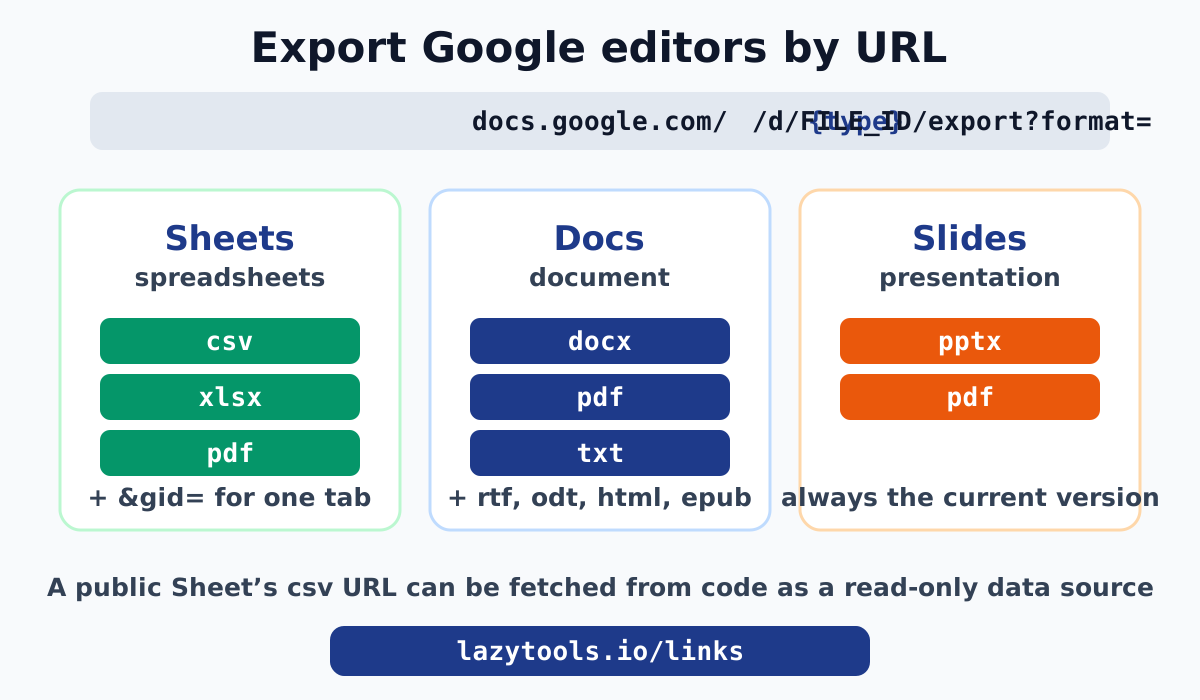
Google’s three editors store documents in an internal format, not as ordinary files, so they cannot be downloaded with Drive’s uc?export=download endpoint (that one is for uploaded files like photos, PDFs and ZIPs, covered in How to create a Google Drive direct download link). Instead, each editor converts the live document to a chosen format through an export endpoint:
| Editor | URL template |
|---|---|
| Sheets | https://docs.google.com/spreadsheets/d/FILE_ID/export?format=FMT |
| Docs | https://docs.google.com/document/d/FILE_ID/export?format=FMT |
| Slides | https://docs.google.com/presentation/d/FILE_ID/export?format=FMT |
The FILE_ID is the long string between /d/ and /edit in the editor URL. The FMT is the output format. That is the entire mechanism. These are the same URLs that fire when you use File, then Download, then (a format) inside the editor, so whatever that menu can produce, a URL can produce too.
Formats each editor supports
Not every format applies to every editor. Here is what works:
| Format | Sheets | Docs | Slides | Notes |
|---|---|---|---|---|
csv | ✅ | first sheet only, or one tab with gid | ||
tsv | ✅ | tab-separated variant | ||
xlsx | ✅ | full Excel workbook, all tabs | ||
ods | ✅ | OpenDocument spreadsheet | ||
docx | ✅ | Word document | ||
txt | ✅ | plain text, formatting dropped | ||
rtf | ✅ | rich text | ||
odt | ✅ | OpenDocument text | ||
html | ✅ | zipped HTML | ||
epub | ✅ | e-book | ||
pptx | ✅ | PowerPoint | ||
pdf | ✅ | ✅ | ✅ | printable snapshot of any editor |
pdf is the universal one: every editor exports a PDF, which makes it the go-to for sharing a read-only, nicely formatted snapshot that still updates when the source changes.
Exporting a single tab of a Sheet
A spreadsheet often has several tabs, and a bare CSV export only returns the first one. To target a specific tab you add its gid (grid ID):
https://docs.google.com/spreadsheets/d/FILE_ID/export?format=csv&gid=123456789To find a tab’s gid, open the sheet, click the tab you want, and look at the browser address bar. The URL ends with #gid=123456789; that number is the gid. Copy it into the export URL after &gid=.
A quick reference:
| You want | Add this |
|---|---|
| The first/default sheet as CSV | nothing (bare format=csv) |
| A specific tab as CSV | &gid=TAB_GID |
| Every tab in one file | use format=xlsx (CSV cannot hold multiple tabs) |
| A print-ready PDF of the whole book | format=pdf (no gid) |
Using a public Sheet as a lightweight data source
Here is where the Sheets CSV export earns its keep. Because the URL returns plain comma-separated text and always reflects the current rows, a public spreadsheet becomes a simple read-only data source that anything able to make an HTTP request can read.
A minimal browser fetch looks like this:
const url =
  "https://docs.google.com/spreadsheets/d/FILE_ID/export?format=csv&gid=0";
const csv = await fetch(url).then((r) => r.text());
const rows = csv.trim().split("\n").map((line) => line.split(","));
// rows[0] is the header row; rows[1..] are the data
That is enough to drive a small dashboard, populate a dropdown, or feed a static-site build from a spreadsheet that non-technical teammates can edit. The appeal is obvious: the “database” is a Google Sheet anyone on the team can update, and the “API” is a URL.
A few honest limits before you lean on it:
- It is read-only and public. The sheet must be shared as “Anyone with the link”. There is no write path and no access control beyond that.
- Naive CSV splitting breaks on commas inside values.
split(",")mangles a field like"Smith, Jane". Use a real CSV parser, or see the pitfalls in CSV to JSON without the traps. - It is a convenience, not a contract. There is no published rate limit or uptime guarantee for heavy automated use. For a production backend, use a real database or API; for a team dashboard or a prototype, the Sheet works beautifully.
- CORS applies. Browser
fetchto the export endpoint generally works for public sheets, but behaviour can vary; a tiny server-side proxy sidesteps any CORS surprise.
Auto-updating PDFs and documents
The export endpoint renders the document at the moment of the request, which gives you living links:
- A
format=pdflink to a Doc always returns the current PDF. Put it in a wiki or an email footer and it reflects edits without you re-uploading anything. - A
format=pdflink to a Slides deck returns the latest slides, handy for a “current pitch deck” link that never goes stale. - A
format=xlsxlink to a Sheet downloads a fresh workbook every time, useful for a recurring report people grab on demand.
The flip side of “always current” is that you cannot rely on it for a frozen record. If you need the version as it existed on a certain date, download it and archive that file; the live URL will keep moving.
Why build the URLs with a tool
Hand-assembling export URLs is doable but error-prone: the editor path differs (spreadsheets vs document vs presentation), the ID has to be lifted out cleanly, and the valid formats differ per type. The Google Drive Direct Download Link Generator removes the guesswork. Paste any Sheets, Docs or Slides share link and it:
- detects which editor it is,
- extracts the file ID,
- and prints every valid export URL (xlsx/csv/pdf for Sheets, docx/txt/pdf for Docs, pptx/pdf for Slides) with one-click copy.
And it does this in your browser. The link you paste, which often points at an internal or unpublished document, is parsed locally with JavaScript and never sent to LazyTools. That is the whole point of a privacy-first link tool: a utility that uploaded your document URLs to “help” you would defeat itself.
Permissions: the usual blocker
As with any Google sharing link, the export URL obeys the document’s permissions. If the file is private, the endpoint returns Google’s sign-in or request-access page (which is itself HTML) rather than your CSV or PDF. That is the most common reason a fetch “returns HTML” instead of data.
To make an export URL work for everyone:
- Open the document, click Share.
- Set General access to Anyone with the link, role Viewer.
- Copy the link and build your export URL from it.
On Workspace accounts, an admin policy may forbid public sharing entirely, in which case the export can only be fetched with authentication, not a plain public URL.
The gviz endpoint: query a sheet like a table
The export?format=csv endpoint gives you the whole sheet (or one tab). There is a second, lesser-known endpoint that lets you ask for part of a sheet and even run a small query against it: the Google Visualization API endpoint, gviz.
https://docs.google.com/spreadsheets/d/FILE_ID/gviz/tq?tqx=out:csv&sheet=Sheet1The tqx=out:csv part asks for CSV output (you can also request out:json). The real power is the optional tq= parameter, which takes a small SQL-like query:
.../gviz/tq?tqx=out:csv&tq=select%20A,%20C%20where%20B%20%3E%20100That returns only columns A and C, for rows where column B is greater than 100, computed by Google before anything is sent to you. For a dashboard that only needs a slice of a large sheet, this is far lighter than pulling the entire CSV and filtering client-side. Two caveats: the query language is Google’s own dialect (close to SQL but not identical), and like every endpoint here it requires the sheet to be publicly shared. Use export?format=csv for a simple full dump, and gviz when you want the server to do the filtering.
Publish to the web vs export
Google also has a Publish to the web feature (File, then Share, then Publish to web) that produces URLs like .../pub?output=csv. It looks similar to the export endpoint, but there are important differences:
export?format=csv | Publish to web (/pub) | |
|---|---|---|
| Needs explicit “publish” action | no, just share the file | yes, a separate publish step |
| Reflects edits | immediately | can lag; Google caches published output |
| Access | obeys the file’s sharing | effectively public once published, even if sharing is later tightened |
| Revoke | change sharing | must un-publish specifically |
The subtle trap with Publish to the web is that un-sharing the file does not un-publish it. A sheet you later set back to “Restricted” can still be readable through its old /pub URL until you explicitly stop publishing. For most “read my sheet from code” needs, the export or gviz endpoint on a normally shared file is cleaner and easier to revoke. If you do publish, remember to un-publish when you are done.
Turning the exported data into JSON, typed models or SQL
A CSV export is a starting point, not usually the final shape your code wants. Once you have the data out of the sheet, LazyTools has the next steps, all running locally in your browser:
- CSV to JSON: the classic next move, with the comma-and-quote pitfalls handled properly. See the CSV to JSON tool and CSV to JSON without the traps.
- CSV or JSON to SQL INSERTs: if the sheet is really a data table headed for a database, generate the
INSERTstatements with the guidance in Generate SQL INSERTs from JSON or CSV. - JSON to typed models: turn the parsed rows into TypeScript interfaces, Go structs or Python classes with Generate typed models from JSON.
The pattern is the same each time: the Sheet is the human-editable source, the export URL is the pipe, and a client-side converter reshapes the data without any of it touching a server.
How fresh is the data, really?
“Always current” needs one small asterisk. The export and gviz endpoints render the live document, so they reflect edits, but Google does apply some caching at its edge for performance, and browsers and CDNs in front of your own app may cache the response too. In practice:
- An edit in the sheet shows up in a fresh export within seconds to a minute or two, not instantly to the millisecond.
- If you
fetchthe URL repeatedly, add a cache-buster (&_=TIMESTAMP) or set appropriate request headers if you need to be sure you are not reading a cached copy. - For a dashboard that polls every few minutes, the default freshness is completely fine; for anything that must be real-time to the second, a spreadsheet export is the wrong tool and a proper database or websocket feed is right.
This is the same “convenience, not a contract” theme that runs through all of these endpoints: wonderful for team dashboards, reports and prototypes, not a substitute for production data infrastructure.
A worked mini-dashboard
To make the “sheet as a data source” idea concrete, here is the full shape of a tiny dashboard that reads from a Google Sheet, with no backend at all.
- Build the sheet. A tab named
Saleswith headers in row 1:Month,Revenue,Region. Teammates edit it normally. - Share it. Set the file to “Anyone with the link”, Viewer.
- Grab the export URL. Paste the share link into the Google Drive Direct Download Link Generator and copy the CSV export URL, then add the
Salestab’sgid. - Fetch and render in a static page:
const URL =
  "https://docs.google.com/spreadsheets/d/FILE_ID/export?format=csv&gid=GID";
const text = await fetch(URL).then((r) => r.text());
// parse with a real CSV parser, then draw- Chart it by feeding the parsed rows to any chart library, or export a quick image with the LazyTools bar chart maker.
The result is a dashboard whose data is edited in a spreadsheet and whose “deployment” is a static file. It is not a production analytics stack, but for an internal status board, a public stats page or a prototype, it is hard to beat for effort. The same caveats apply as always: it is read-only, public, and subject to Google’s edge caching, so treat the numbers as “fresh within a minute or two”, not real-time.
Single cells, ranges and named ranges
Sometimes you want one value, not a whole sheet. The gviz endpoint from the previous section is the cleanest route: a select query can return a single column or a filtered slice. For a specific rectangular range, the published-to-web CSV output accepts a range parameter in some configurations, though behaviour varies and the gviz query language is the more dependable tool for “give me exactly these columns/rows”. If your sheet uses named ranges, the gviz query can reference columns by letter within the queried sheet; named ranges themselves are a spreadsheet-side convenience and do not change the export URL. The practical advice: for a whole tab use export?format=csv&gid=, and for a slice use gviz/tq with a select query rather than trying to over-parameterise the plain export endpoint.
A quick decision guide
| You want | Use |
|---|---|
| Download a Sheet as Excel | spreadsheets/d/ID/export?format=xlsx |
| Read one tab’s data from code | spreadsheets/d/ID/export?format=csv&gid=GID |
| A living PDF of a Doc | document/d/ID/export?format=pdf |
| A PowerPoint of a deck | presentation/d/ID/export?format=pptx |
| A plain-text dump of a Doc | document/d/ID/export?format=txt |
Wrapping up
The export endpoint turns every Google editor document into a set of download URLs, and turns a public Google Sheet into a read-only data source you can fetch from anywhere. Remember three things: the pattern is {type}/d/FILE_ID/export?format={fmt}; the output is always the current version; and the document must be shared publicly for an unauthenticated URL to work.
Build any of these links the easy, private way with the Google Drive Direct Download Link Generator. For plain uploaded files (photos, PDFs, ZIPs) rather than editor documents, see How to create a Google Drive direct download link. And when you share these links onward, run them through the URL tracking parameter cleaner first so no analytics junk rides along. Everything is in the Links and Sharing toolkit.
Google documents its download and export options in the Google Drive Help Center.
Frequently asked questions
How do I export a Google Sheet to CSV from a URL?
Use the export endpoint: https://docs.google.com/spreadsheets/d/FILE_ID/export?format=csv. Opening it downloads the sheet as CSV. To target a specific tab, add &gid=TAB_GID, where the gid is the number in the sheet's URL when that tab is open. The LazyTools Google Drive Direct Download Link Generator builds this URL from any Sheets share link.
Can I use a Google Sheet as a simple API?
Yes, for read-only public data. The CSV export URL returns the current rows as comma-separated text, which a script, dashboard or no-code tool can fetch and parse. The sheet must be shared as 'Anyone with the link'. It is a convenience endpoint, not a rate-limited, versioned API, so use it for light data pulls rather than high-traffic production backends.
What formats can Google Docs export to by URL?
docx, pdf, txt, odt, rtf, html, and epub. Build the URL as docs.google.com/document/d/FILE_ID/export?format=docx and swap the format value. Each returns the current version of the document in that format.
Does the export URL always return the latest version?
Yes. The export endpoint renders the live document at the moment you request it, so a bookmarked export URL always reflects the current content. That is why it is useful for dashboards and auto-updating PDFs, and why you should pin or snapshot the data if you need a frozen copy.
Why does my export URL download an HTML sign-in page instead of the file?
The document is not publicly shared. Google returns its sign-in or access-request page (which is HTML) instead of the export when the requester lacks permission. Set the file to 'Anyone with the link' as Viewer, or the fetch must be authenticated.
How do I export only one tab of a Google Sheet?
Add the tab's gid to the CSV or PDF export URL: ...export?format=csv&gid=123456789. Find the gid in the browser address bar while that tab is selected (the #gid=... at the end). Without a gid, CSV exports the first sheet and PDF exports the whole workbook.
Is the LazyTools tool sending my spreadsheet anywhere?
No. It only reads the file ID from the link you paste and assembles the export URLs in your browser with JavaScript. The spreadsheet itself is never touched by LazyTools, and the link is never uploaded.