
explainer
How to Edit a PDF Without Uploading It (Sign, Organize, Convert, Privately)
By Uttam Regmi · Published 2026-07-27 · Updated 2026-07-27 · 5 min read · Fact-checked, sources cited
You can sign, merge, split, reorder, number and extract text from a PDF entirely in your browser, with the file never leaving your device. Most “free online PDF editor” sites work by uploading your document to their servers to process it, which means a copy of your contract, bank statement or ID ends up on someone else’s computer. A browser-based editor does the same edits locally using the same PDF engines your browser already ships with, so nothing is uploaded.
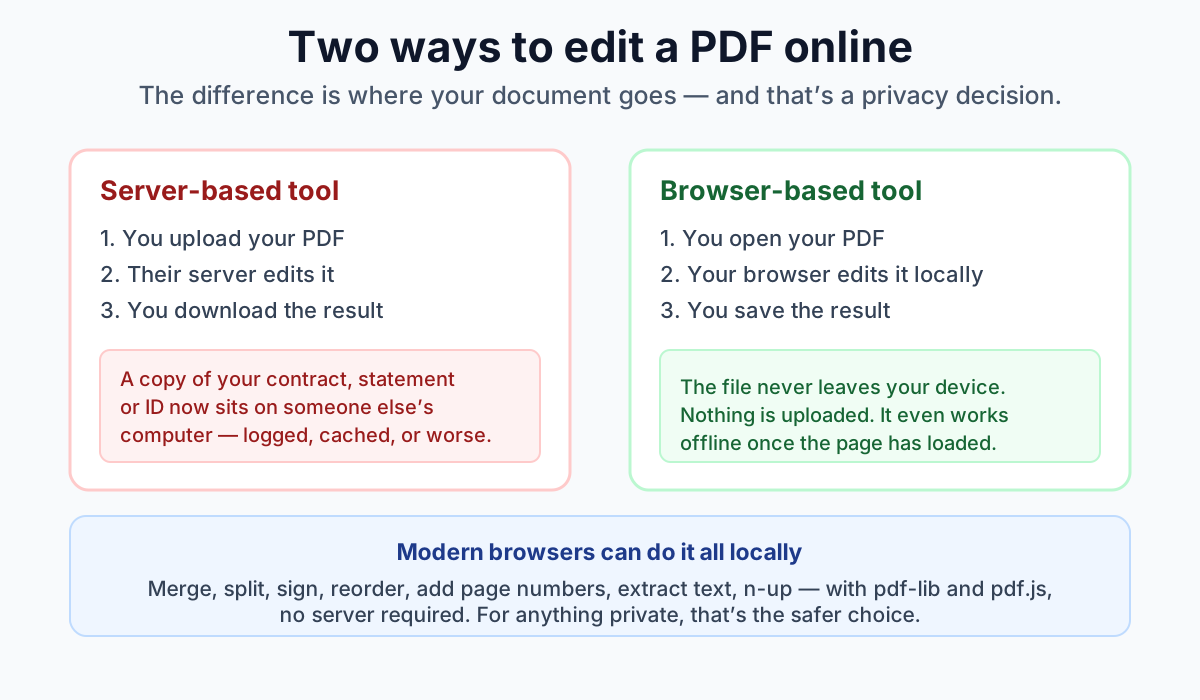
Why “without uploading” matters
PDFs are the format we reach for exactly when a document is important: signed agreements, payslips, tax forms, passports and IDs, medical letters, legal filings. When you upload one to a random online editor:
- A copy is transmitted to and stored on their servers, at least temporarily.
- It may be logged, cached, backed up, or retained longer than you’d expect.
- You’re trusting an unknown third party, and their security, with a private document.
Editing in the browser sidesteps all of that. The file is read into your browser’s memory, changed there, and saved back out. It never touches a server, so there’s no copy to leak, and it works even with your network disconnected.
The common PDF edits, done locally
Everything below runs entirely in your browser:
| Task | Do it with | What stays true |
|---|---|---|
| Sign a document | Sign PDF | Draw a signature, stamp it on any page |
| Reorder / delete pages | Organize PDF | Drag pages around, remove ones you don’t need |
| Extract the text | PDF to Text | Pull the words out to copy or save |
| Fit more per sheet | PDF N-Up | 2 or 4 pages per page to save paper |
Merging, splitting, rotating, adding page numbers and watermarks all work the same way, locally, with no upload.
Signing a PDF privately
Signing is the clearest case. A signature goes on a contract or form, precisely the kind of file you shouldn’t hand to a stranger’s server. A browser-based signer lets you draw your signature (with a mouse, trackpad or finger) and stamp it onto the page, then download the signed PDF, all without an upload. Note this is a visual signature suitable for everyday forms, not a certificate-based cryptographic e-signature, which needs a dedicated service with identity verification.
Reorganizing pages
Need to drop a page, fix the order, or pull a section out? An organizer shows page thumbnails so you can rearrange or delete visually and export a new PDF. Because pages are copied rather than re-rendered, text stays selectable and quality is untouched.
Getting the text out
To reuse a PDF’s words, a text extractor reads the document’s text layer locally. (This works on digital PDFs; scanned/image PDFs need OCR, see our guide on extracting text from a PDF.)
How browsers do it without a server
Two mature JavaScript libraries make this possible, and they run in the page itself:
- pdf.js (from Mozilla), the same engine Firefox uses to display PDFs. It reads and renders pages, so it powers previews, thumbnails and text extraction.
- pdf-lib, creates and modifies PDFs: adding pages, images and text, copying and reordering pages, and saving the result.
Between them, the browser can do the edits that used to require a desktop app or a server. The only things that still genuinely need heavier tooling are OCR of scans and certificate-based digital signatures.
When a server is involved (and how to tell)
Not every “online” tool is local. The tell-tale signs that your file is being uploaded:
- A progress bar that says “Uploading…” then “Processing…” before you can download.
- The tool works on a phone with the page closed, or emails you a link to the result.
- The site’s own privacy policy mentions storing or processing your files on their servers.
A truly local tool does its work the instant you choose the file, with no upload step, and keeps working if you go offline. When in doubt, disconnect from the internet and try it: if it still works, it’s local.
FAQ
Can I edit a PDF without uploading it anywhere? Yes. Modern browsers can sign, merge, split, reorder, number and extract text from PDFs locally using pdf-lib and pdf.js, so the file never leaves your device. Look for tools that state the work happens in your browser.
Is it safe to sign a PDF online? Only if the signing happens locally. Many online signers upload your document. A browser-based signer stamps your signature on the file in your browser and uploads nothing, which is the safe way to sign a private contract.
How can I tell if a PDF tool uploads my file? If it shows an “uploading” or “processing” step before you can download, it’s sending your file to a server. A local tool works instantly on file selection and keeps working offline. You can test by disconnecting from the internet.
Do browser-based PDF editors have file-size limits? They’re bounded by your device’s memory rather than an upload cap, so they often handle large files that upload-based tools reject, though very large PDFs can be slow to render.
Can I edit a scanned PDF this way? You can reorder, sign and number it, but you can’t extract text from a scan without OCR, because a scanned PDF is images with no text layer. OCR is the one common task that still needs extra tooling.
Is a browser signature legally binding? It’s a visual signature that suffices for many everyday agreements, but it isn’t a certificate-based cryptographic signature. For legally robust e-signatures with identity verification, use a dedicated e-signature provider.
Does editing in the browser reduce quality? No. Tools like pdf-lib copy pages and content as vectors rather than re-compressing them, so text stays crisp and selectable and images aren’t degraded.
Frequently asked questions
Can I edit a PDF without uploading it to a server?
Yes. Modern browsers can sign, merge, split, reorder, number and extract text from PDFs entirely on your device, so the file is never transmitted to a server. The edits happen in your browser's memory and the result is saved straight back to your device.
How does browser-based PDF editing keep my file private?
The file is read into your browser's memory, changed there, and saved back out without ever being sent to a server. Because no copy is transmitted or stored remotely, there is nothing on someone else's computer to leak, log, cache or retain.
How can I tell if an online PDF editor is uploading my file?
The quick test: if a tool makes you wait while it 'uploads' and 'processes' your document, the file has left your device to be handled on a server. A truly local editor works instantly and even functions with your network disconnected.
What PDF tasks can I do locally in the browser?
Common edits all run locally: signing, reordering or deleting pages, extracting text, fitting multiple pages per sheet, plus merging, splitting, rotating, and adding page numbers or watermarks.
Does editing a PDF in the browser work offline?
Yes. Since the processing happens on your own device rather than a server, local PDF editing works even with your network disconnected, and it has no file-size upload limits or processing queues.